Can't get Mate to auto-login

I have a brand new install of Mate 24.04 and I have enabled auto-login on the mate-user-admin app, as well as tried several configuration changes under /etc/lightdm/lightdm.conf.

No matter what I do, the machine will not auto-login as the user I have chosen. I am trying to do this remotely over SSH so that it will start x0vncserver so that I can get to the desktop remotely.

I have been struggling with this for days trying every kind of combination possible. Any help would be greatly appreciated. Right now I only have ssh access to the device. I can remote to it and run: ssh -X mate-user-admin but it won’t let me click on the button, so I have been trying to get it to auto-login by changing configurations in lightdm and then rebooting, but the “who” command never shows the:
USERNAME tty7 2025-09-23 05:06 (:0)
it only shows my ssh session pts/0.

Thanks in advance,
Paul

one way would be to get rid of arctica-greeter and install slick-greeter.

sudo apt purge arctica-greeter
sudo apt install slick-greeter

You now have a graphical app to customize your login window

Open "Control-Center"
Click on "Login Window"
select 3rd tab (settings)
select "Activate Numlock"
close window and reboot

Then go to Control Center>login window>User and change the settings.

I much prefer slick greeter to arctica greater. But this defeats a security measure. Anyone will be able to access your data.

2 Likes

Hi Paul,

Before you try to configure autologin, make sure you have a working ssh and x0vncserver setup:
https://www.techrepublic.com/article/how-to-connect-to-vnc-using-ssh/

Also, if you only want to run one or more xapplication(s) remotely, you don't need to forward the whole desktop. Just forward the application you want to run:

ssh -X my_remote_account@my_remote_server my_remote_application

which has the advantage of not needing x0vncserver in the first place.
You can use this completely passwordless by using ssh-keys.

Also ssh -X mate-user-admin will give you a syntax error. Ssh needs at least to know a username and a remote-host name. See man ssh

EDIT: I don't know your usecase nor do I know what clients you use but the app s below might be useful in some cases:

2 Likes

I see same issue in a specific setup. I don’t know why, but autologin doesn’t work with Ubuntu Mate 24.04 in Legacy bios mode, with Radeon GPU and dualboot Windows. Do you have this setup?

Here my same issue, doesn’t resolve, I gave up.

2 Likes

No, I don’t have a dual boot, nor is it in legacy mode, and the video card is an Intel Xeon E3-1200 v3/4th Gen Core Processor Integrated Graphics Controller.

I also had this problem on another machine after a fresh upgrade/install to 24.04, but some how I was able to get it to work. My notes said that I had to restart lightdm service after reboot, so I put that in a root cronjob and that seemed to fix that machine, but for this one it doesn’t work.
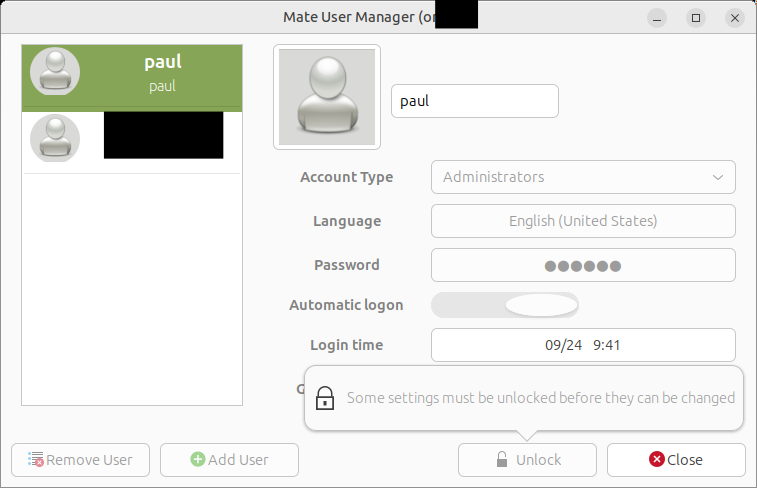
Thanks,
Paul

pavlos@um24:~$ cat /etc/lightdm/lightdm.conf
[SeatDefaults]
autologin-user=pavlos

pavlos@um24:~$
1 Like

Yes, I know I have to put in a username etc... I was just abbreviating the command to show that I was running the app remotely using SSH.

I really want to stick with RealVNC.

That doesn’t work. It works on other machines I have that are earlier than 24.04.

cat /etc/lightdm/lightdm.conf

[SeatDefaults]
autologin-user=paul

if you unlock that screen, the Automatic logon becomes green, right?

an easy way to test ssh with -X is: ssh -X <target> xclock

if an xclock pops up, X11 communication works.

2 Likes

Are you able to login remotely without auto-login?

If not, there is a security policy blocking the access.

1 Like

Thanks, I was wanting that for a need.