Hi, @cyril (Kirill Terletski) 
Hmmm... I suggest that you do the following:
1 - Start by checking that the "ayatana-indicator-datetime" software package is installed. I'm also using Ubuntu MATE 22.04 LTS ("Jammy Jellyfish"):
$ apt list --installed | grep -i 'datetime'

WARNING: apt does not have a stable CLI interface. Use with caution in scripts.

ayatana-indicator-datetime/jammy,now 22.2.0-1ubuntu0 amd64 [installed,automatic]
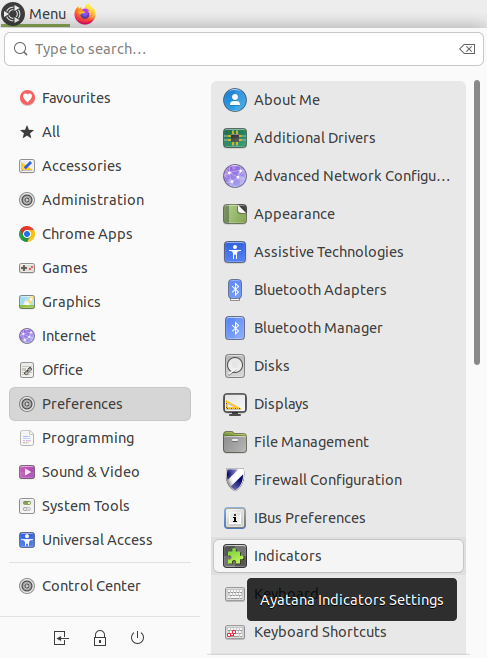
2 - Open the "Indicators" program (click on the Ubuntu MATE Menu, hover your mouse over the "Preferences" menu to show its options, and then click on the "Indicators" icon in the right column), as I show in the following screenshot:
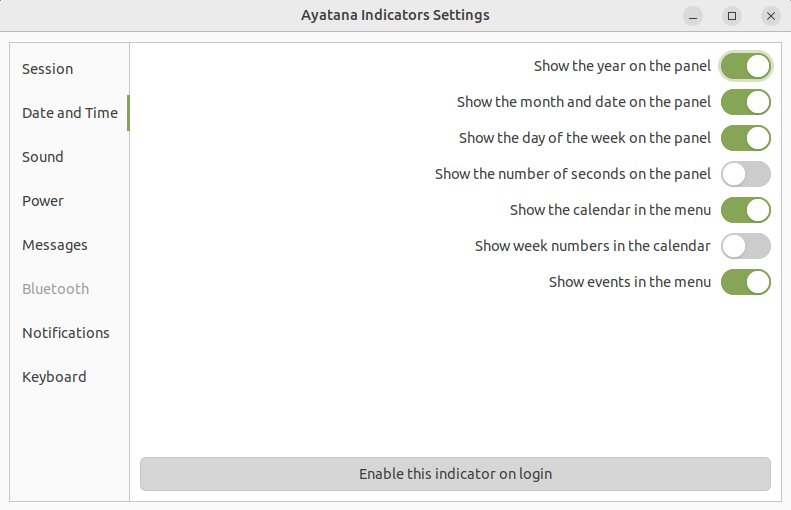
3 - That should have opened the "Ayatana Indicator Settings" window. Click on the "Date and Time" section and check that the options that you want to display (for year, month and date, day of the week, etc ...) are enabled and that the "Enable this indicator on login" button at the bottom of that window is also enabled (dark), as I show in the following screenshot:
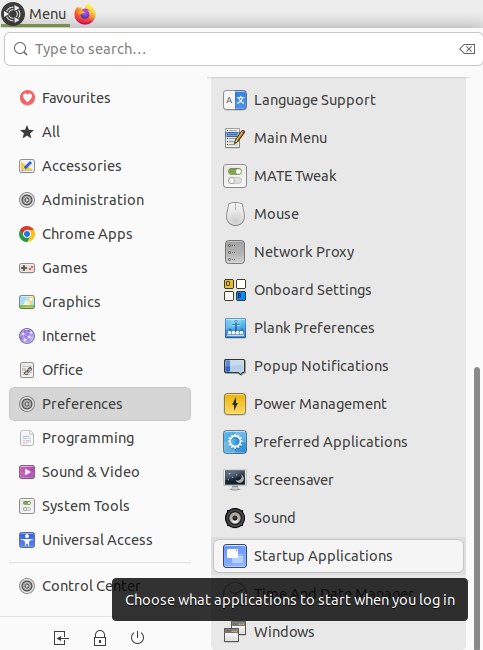
4 - Close that "Ayatana Indicator Settings" window. Finally, let's check that the "Ayatana Indicator Date & Time" is checked in the "Startup Programs" ( as @gordon nicely explains in another topic, but for the opposite issue of hiding that indicator - see How to disable Clock on the Indicator applet on MATE Panel? - #2 by gordon ). To do that, click again on the Ubuntu MATE Menu, hover your mouse over the "Preferences" menu to show its options, and then scroll down the right column until the "Startup Applications" is shown and then click on that "Startup Applications" icon in the right column), as I show in the following screenshot:
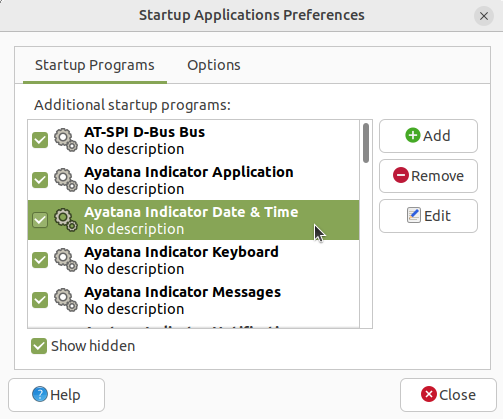
5 - That should have opened the "Startup Application Preferences" window. Check if the "Ayatana Indicator Date & Time" option appears in the "Additional startup programs:" list and that it has the corresponding checkbox checked, as I show in the following checkbox (if the corresponding checkbox isn't checked, then please check it). Here's the screenshot:
6 - Click the "Close" button to close the window.
7 - Log out and log in again.
Hopefully, the date and time indicator will appear in the panel when you log in again.
I hope this helps