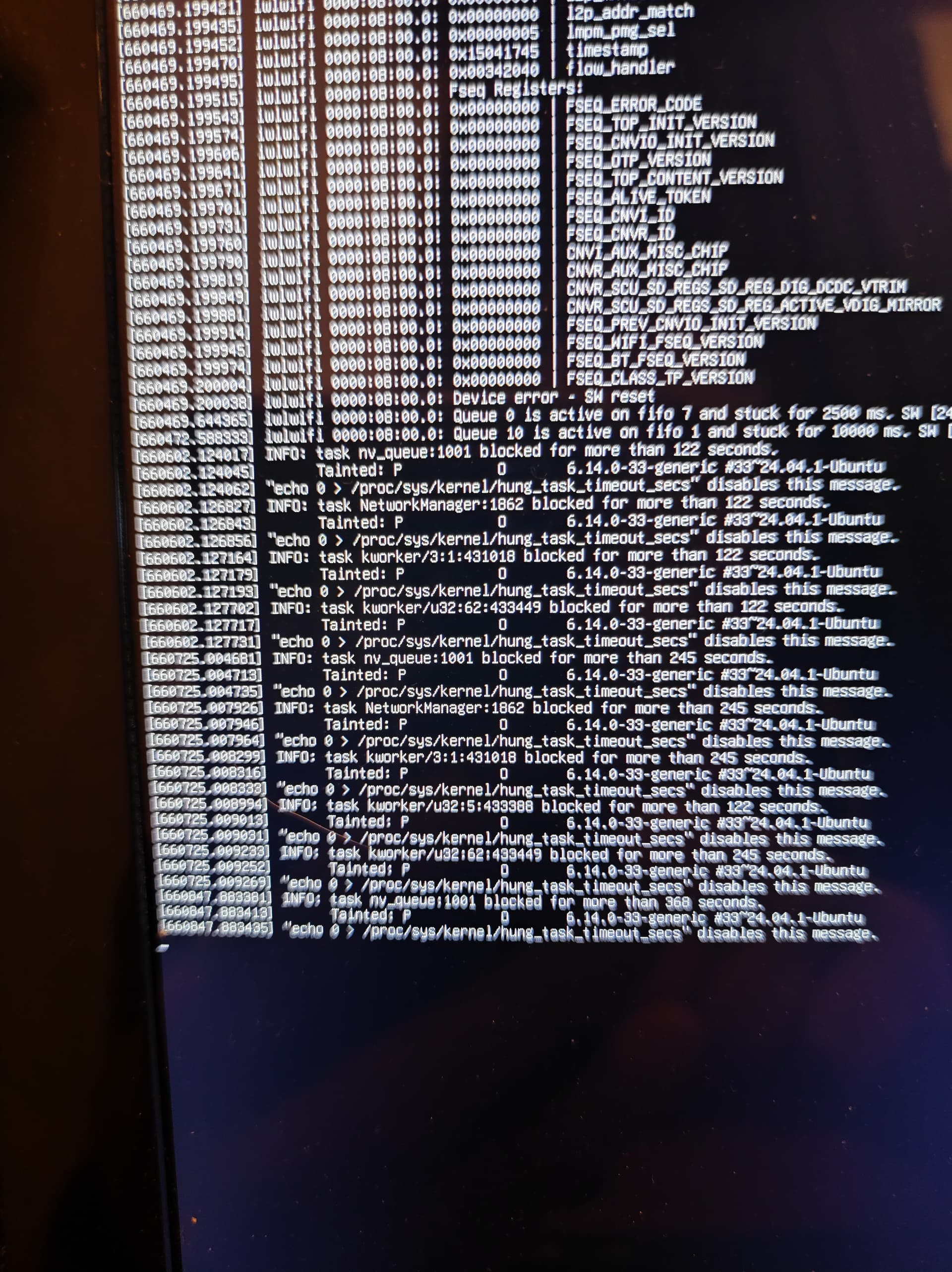
Using the latest version of Mate, Lenovo y50-70 after long time black screen gave me this photo. I surely could use any help.
P.S. I am only a simple user…
Using the latest version of Mate, Lenovo y50-70 after long time black screen gave me this photo. I surely could use any help.
P.S. I am only a simple user…
Hi,
We need more data !
Let’s try to access recovery mode and collect some information to help fix your Ubuntu startup issue.
Access the GRUB menu:
Turn on your computer.
When the manufacturer’s logo appears, hold down the Shift key (on BIOS systems) or press Esc repeatedly (on UEFI systems).
You should then see the GRUB boot menu.
Enter Recovery Mode:
In the GRUB menu, select:
Advanced options for Ubuntu
Then choose a line ending with (recovery mode) and press Enter.
Wait for the Recovery Menu to appear.
Open a root shell:
In the Recovery Menu, choose:
root – Drop to root shell prompt
When the prompt appears, you’ll be in read-only mode.
Remount the filesystem as writable with:
mount -o remount,rw /
Check your system information (for diagnostics):
lsb_release -a
uname -a
df -h
free -h
journalctl -p 3 -xb
dmesg | tail -30
These commands show system version, kernel info, disk space, memory, and recent errors.
Repair broken packages and update your system:
Run these commands in order:
dpkg --configure -a
apt update
apt install -f
apt full-upgrade
dpkg --configure -a → fixes partially installed packages
apt update → refreshes package lists
apt install -f → tries to fix missing dependencies
apt full-upgrade → installs the latest updates and upgrades all packages
When finished:
Type reboot to restart your system.
See if Ubuntu starts normally.
Thank you very much for the response. I ll try and I ll be back.
If you boot from a Live ISO, do you get a working environment?
If so, can you provide the report from the command:
inxi -F -xxx
Thanks for your response. I am trying but still got black screen waiting too long to boot.
It's this one, isn't it ?
Lenovo Y50-70 Specifications
General Information
Model		Lenovo IdeaPad Y50-70
Weight		2.4 kg (5.29 lbs)
Dimensions	15.6 inches (39.6 cm) display
Processor and Memory
Processor	Intel Core i7-4710HQ (2.5 - 3.5 GHz)
RAM			8 GB DDR3 SDRAM
Storage		1 TB Hybrid HDD + 8 GB SSHD
Graphics
Graphics NVIDIA GeForce GTX 860M (4 GB dedicated)Display
Resolution	3840 x 2160 pixels (UHD)
Type		Glossy IPS
Connectivity and Ports
USB Ports	2 x USB 2.0, 1 x USB 3.0
HDMI		Yes
Ethernet	1 Gbps Ethernet port
Wireless	Intel AC 3160 Dual-band
Additional Features
Keyboard	Chiclet with backlight
Audio		2 speakers + subwoofer
Camera		720p HD
Just for the record:
The bootlog that you showed, is that from the live iso before the install ?
Or is this the boot from after you installed the system ?
I put in to search INFO: tas nv_queue:1001 blocked
This message indicates that a task related to the NVIDIA GPU is blocked, which can happen due to various issues, such as driver problems or hardware conflicts. You may need to check your GPU drivers or system logs for more details on the cause. - archlinux
Basically this logging is triggered if the CPU scheduler hasn't switched to the process in the given amount of time, and the process doesn't qualify for an exception.
The exceptions are special cases where a process hasn't been switched to but it shouldn't get logged about. I don't clearly understand the conditions for the exceptions; FWIW the comments on the cases in the code are:
Also, skip vfork and any other user process that freezer should skip.

Also, when a freshly created task is scheduled once, changes
its state to TASK_UNINTERRUPTIBLE without having ever been
switched out once, it musn't be checked.

https://forums.developer.nvidia.com/t/nv-queue-high-cpu-usage-on-ubuntu-22-04-05-with-nvidia-driver-565/316008
Maybe this can help someone figure it out.
Are you saying that you cannot boot successfully from a Live ISO dvd/stick ???
Must be before I tried to boot from a USB live iso. Now I can not reach the LENOVO screen. Must be some kind of hardware issue. Probably I am heading to the repair shop. Many Thanks for your response.
I can not reach even the LENOVO screen. Probably I am heading to the repair shop. Many thanks for your responses.
Could you try to access the BIOS menu on your Lenovo IdeaPad Y50-70, with one of these methods:
Power off the laptop completely.
Locate the Novo button (a small pinhole next to the power button or on the left side of the laptop).
Insert a paperclip or pin and press it gently.
The system will power on and display the Novo Button Menu.
Use the arrow keys to choose:
BIOS Setup → to enter the BIOS
Boot Menu → to select a boot device (USB, etc.)
Power off the laptop.
Turn it on and immediately start tapping F2 repeatedly to enter the BIOS setup.
If the laptop boots too quickly and skips BIOS access:
Both F2 and Novo button methods work on the Y50-70.
Can you confirm after try please ?
I will try. Thank you. Have a nice day.
I would like to thank everyone who responded and tried to help me solve the problem. Unfortunately it was not possible, I can't reach the LENOVO screen. I'll probably go to a repair shop. Thanks everyone and I appreciate it.