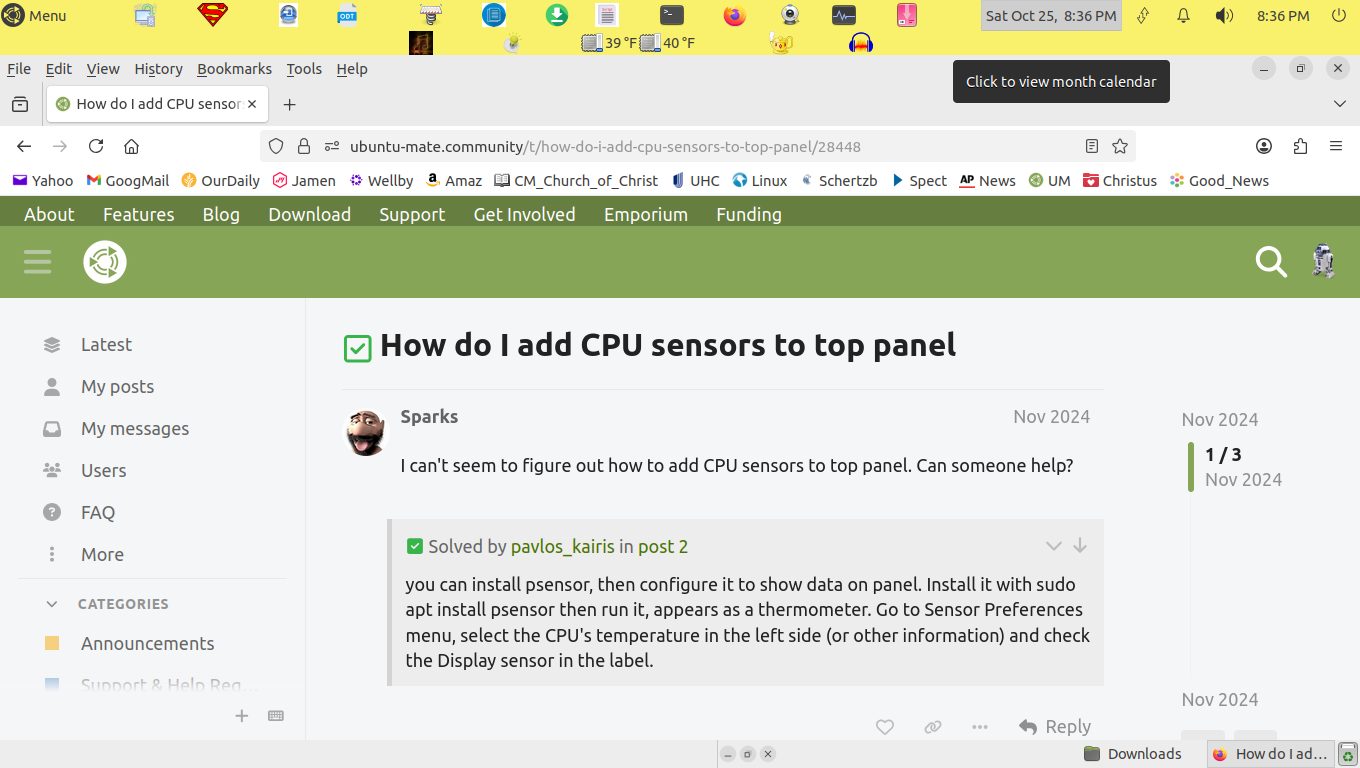
I can't seem to figure out how to add CPU sensors to top panel. Can someone help?
you can install psensor, then configure it to show data on panel.
Install it with sudo apt install psensor then run it, appears as a thermometer. Go to Sensor Preferences menu, select the CPU's temperature in the left side (or other information) and check the Display sensor in the label.
3 Likes
Thanks.
That was a great help
1 Like
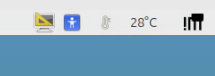
click on psensor, sensor preferences, application indicator, enable display sensor in the label (experimental), ok
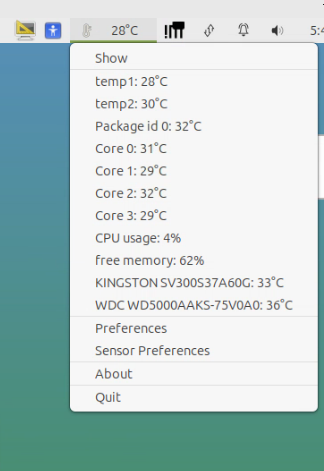
if I click on the thermometer, I get this:
2 Likes
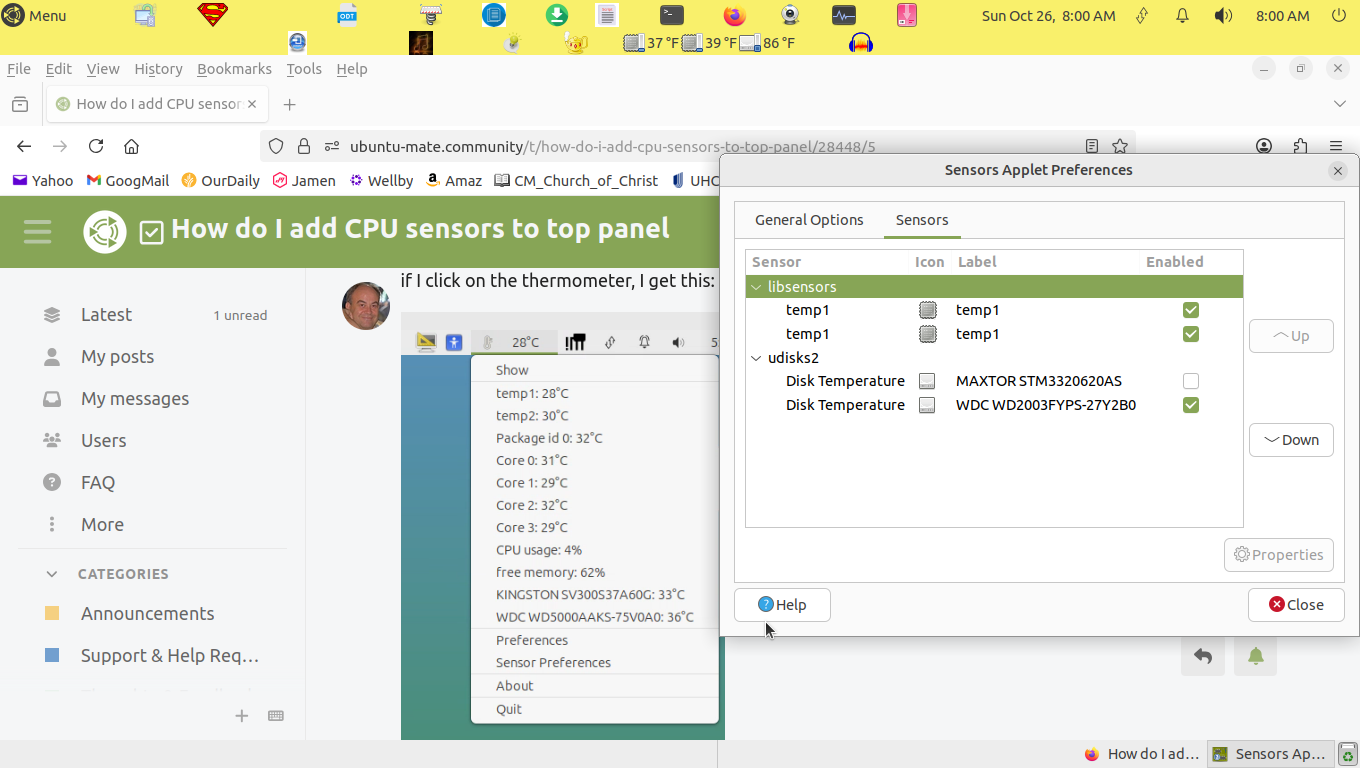
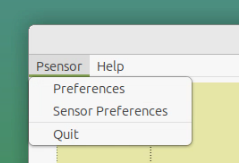
I am making progress.
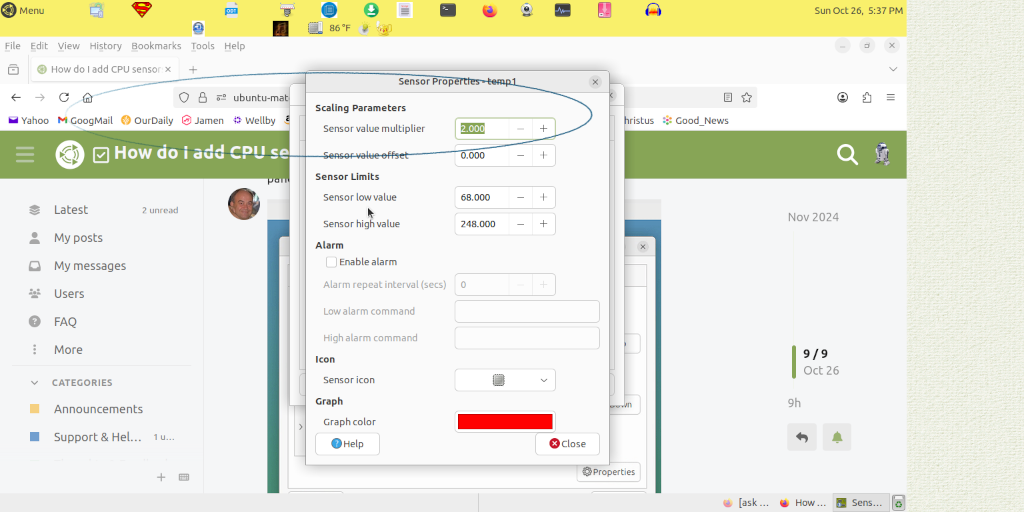
I thought I saw somewhere that I could add a offset to compensate for the low AMD CPU temperature.
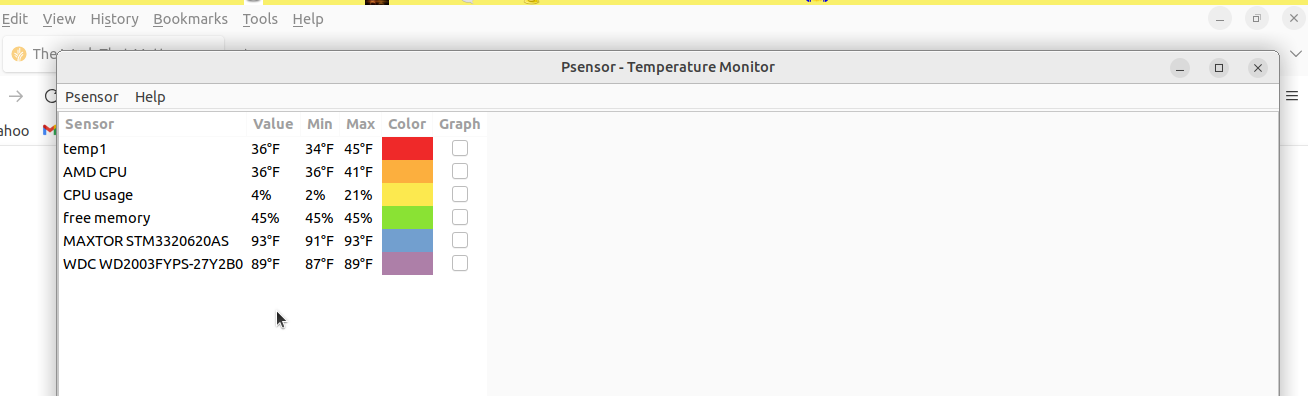
psensor shows only one number next to the thermometer which I assume is the average temp of all cores. psensor may not be what you what.
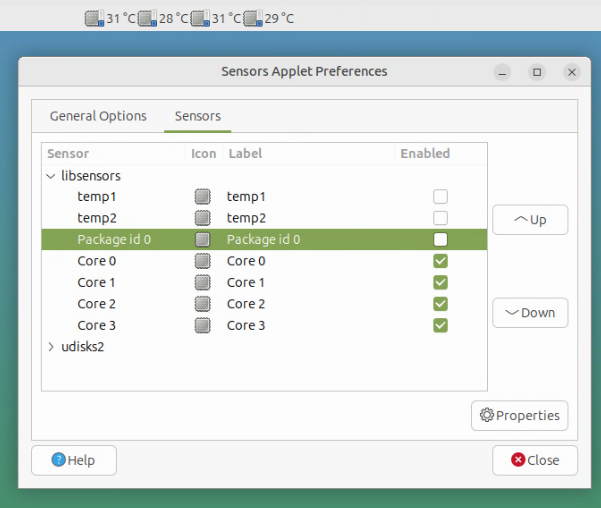
If I right click on the panel, Add to panel, there is Hardware Sensors Monitor, click on Add and you will see a bunch of temp on the panel. Right click on the Panel, Preferences and select only the cores. Now, I have 4 distinct core temps on the panel. Maybe this is what you want.
1 Like