I just tried to transfer an ISO image onto a USB stick.
I first attempted to do that with "Startup Disk Creator" and that was taking forever forever, giving me the 2% report after only 10 minutes for a 5.2 GB image !!! Naturally, I abandoned that and went looking for another approach.
I used the "Disks" utility to restore the image and that went, by comparison, super fast, currently at 35% after the same 10 minutes elapsed time.
Just pointing out that someone might want to look at "Startup Disk Creator" (version 0.3.3 on UM 22.04) for a possible underlying performance-tuning problem as relates to USB sticks, vs CD/DVD?
I’ve always used Startup Disk Creator, works fine for me, always did.
Is it slow? I’m on an old machine so I don’t know if it works the same way on new machines, but I do know it takes its time. The bigger the ISO image is, the longer it takes.
For sure, it never worked fast, on old computers like mine, for relatively small ISO images like Xubuntu or Ubuntu MATE it could take 20 minutes, for Ubuntu ISO image which is a couple gigabytes bigger it took a lot more time.
I trust Startup Disk Creator. It does its work just fine. There’s nothing wrong with it. Nothing.
I don't trust people who demand that the universe work according to their whims.
Burn ISO to USB: sudo dd bs=4M if=/path/to/file.iso of=/dev/sdX status=progress oflag=sync
Wait for completion.
For anyone not familiar with dd (man dd), it's bundled with every Linux distro and is intended as a file convert-and-copy process. The flags given in the example above are:
bs=4M - block size of 4 Mb
if = the infile spec (the ISO image)
of = the outfile spec (the USB device)
status = progress (show a progress indicator)
oflag = sync (write per the symbol list, in this case `sync`).
The result should be a bit-for-bit copy of the "infile" (ISO). If it's bootable, so will be the USB device.
Note: the dd command is destructive, which means anything and everything on the target device will be overwritten.
I always used "Disks" (gnome-disk-utility) to restore images. I forgot about "Startup Disk Creator" (usb-creator-gtk) until now.
I don't have a USB drive to test, but all I can see is that Startup Disk Creator hasn't had updates in years (probably because it's really simple tool, so not a concern) and it's written in Python.
As a guess, it might be differences with how the programs handle disk buffering. Disks might finish faster, but it may still be writing in the background (or slows down) at the end due to how the kernel handles the disk. Startup Disk Creator might appear slower, but could be accurately 'syncs' to disk. Different journeys, same result.
The real comparison would be to write an image using both tools, and use a stopwatch to monitor time, and don't declare it finished until this command completes:
sync
If you have a system monitoring applet, that'll probably show "buffers" in RAM, for Disks at least.
I used a burned DVD-R for my ISO Image of the OS. I don´t know if it has any advantages or disadvantages over USB but, it´s just a good feeling to have something physical in your Hands.
That was my stance until only recently, before Christmas.
My main stumbling block was being able to reliably create a bootable USB with any of the Ubuntu ISO images.
Until I realized that I had to use GParted to create a fresh partition table on any target USB, before making the attempt to burn, my attempts always failed at overwriting what was pre-existing on a USB, and at the cost of those, I preferred the low-cost of DVDs.
The other issue is that I discovered that unless I use msdos for the Partition Table, I never have a bootable USB stick.
So ... with those two "lessons learned", I now use USB sticks for the multiple attempts but, now, reserve the burning of a DVD for those images that I stabilize on. But with the size of images climbing, and not having a Blu-Ray burner, the time will come when I will not be able to do that DVD image for an ISO archive.
I’ve used Disks only once
I use Popsicle if I just want to ‘test’ a flavor by use of a USB
I use Popsicle too to always keep a USB with the latest LTS version (usable on-the-go and as a reinstall tool on a need basis)
I use MKUSB if I want to make a USB ‘persistent’
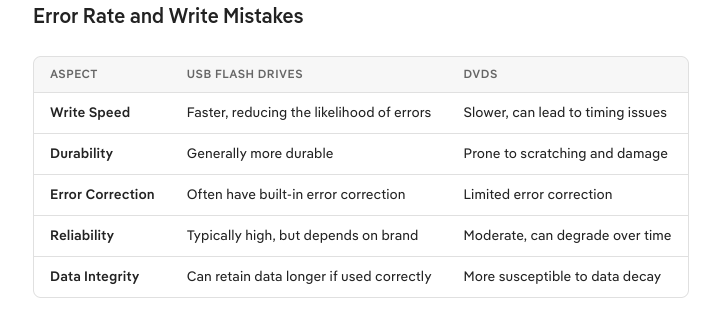
I would say the only advantage I can see of USB is speed. CD/DVD always seemed much slower to me. I also agree about ISO sizes, I remember the days when they all fit on a CD.
Write speed:
Flash USB 2.0 Up to 60 MB/s
Flash USB Up to 400 MB/s (for USB 3.0)
DVD 1x = 1.32 MB/s for standard DVD
Read speed:
Flash USB 2.0 Up to 60 MB/s
Flash USB 3.0 Up to 600 MB/s
DVD 1.36 MB/s (standard)
Well, it is slower, of course. But you do it only once, at least, in my case till now. And of course, on many modern Machines, there is no DVD Drive at all anymore.
But i think that´s really a shame. I remember a time, as everything came onto a CD/DVD. And it was there - always. If you knew how to take care of it, it most likely still is. If you burn a DVD with a ISO it stays there, untouched. Can´t be corrupted or overwritten accidentally. You have something in your hands, you have written onto it whatever you want. It´s yours. And it is only for this specific thing. Onto a big USB you can load 5 OS ISO files. And i can see the advantages of that. It´s really a decision for, what do you need to do with it.
Im really just doing the DVD Boot cause, i like it old fashioned. That´s why i chose a Laptop with a DVD Drive. I like the sound, the machine reading it´s own mind onto itself. Everything nowadays is Digital and just Data and i like to step away from that wherever i can.
Other than that one could consider expense. DVD's have gotten more expensive and harder to find. USB drives have come down a lot in price, but are back up again. Also I used to buy 4 gig USB Drives, then 8 gig USB drives to write ISO's and now can't find them under 16 gigs which is kind of a waste of money and disc space as the higher GIG the higher the cost. Still they are reusable. I don't have the CD from my Xandros days around anymore or even my USB Ubuntu Mate 22.0 LTS.
Because the demand for DVD´s goes down as well since media and programs are more and more aimed towards digital. Laptops needed to slim down and even on a Desktop Computer it´s already being a relict more then a advantage. It will go away, same as Floppy Disks. But it´s also a personal choice. I like having a large Movie collection on DVD´s i can watch whenever i please, not if the Streaming Service has it available at the moment or not in my Country. And simple nostalgia. I still have my first Windows 7, Vista and even Windows 95 Disks.
There has been the typical "thread drift" to this topic (and it's been marked as solved), but my usual solution is to simply create a virtual machine (VM) instead of burning to a CD/DVD/USB. Granted, it requires a host computer and doesn't fit into one's pocket, but my needs these days don't require a bootable drive.