Hello. Installed Ubuntu Mate 24.04. But the keyboard language switching keys do not work. The super+space combination doesn't work. tell me how to fix this problem
1 Like
Welcome, @MikeKhl to the community!
try left alt + left shift. It works for me for years.
2 Likes
Hi!
Open System > Preferences >Hardware > Keyboard menu. Switch to the Layouts tab and ensure that there are at least two different layouts to switch between them.

Since then click Options button, scroll down to Switching to Anothe Layout item and select desired key combination to be used for layout switching.
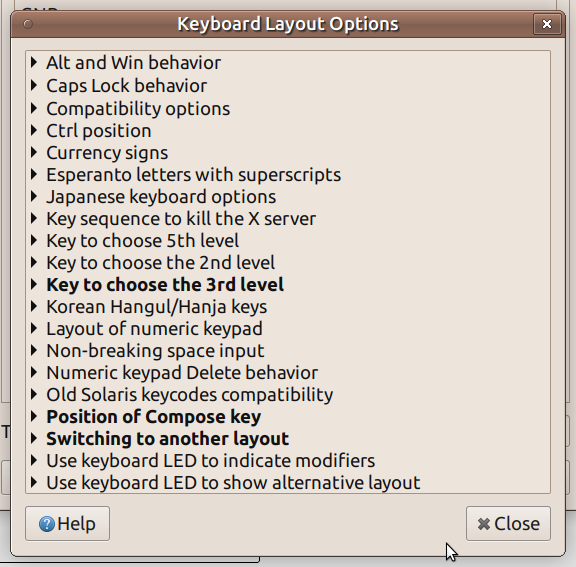
Good luck!
3 Likes
Just to add to that, when I went looking, the key combination was NOT checked off by default, so I did. 

Also, if you have selected multiple keyboard layouts to choose from, the panel should display a widget (towards the right) showing the current selection:

For my own selections shown here:

3 Likes
If the keyboard is the Generic 105-key PC, the Win key (super) may not be recognized. There are different keyboard models and I don't know what the OP has. The OP has to do research and figure out which keyboard he has and test if the Win key is recognized.
2 Likes
Hey! I had a similar issue with Ubuntu Mate recently. What worked for me was going to System Settings > Keyboard > Shortcuts and checking the Typing or Input Sources section. Sometimes, just reassigning the language switch shortcut there does the trick. Give it a shot and see if it helps!
3 Likes
Thank you all very much! Found it and set it up. I will study further. And they said that Linux MATE is the same as Windows)
2 Likes
Struggling with the same issue now as well.
No indicator on the panel. Hovering over the blank space that it is supposed to occupy brings up the layout tooltip, and clicking there supposedly switches the layout, but in reality it remains the same, default layout.
Tried almost every key combination in the keyboard switching hotkey options, and none of them works.
This is the year 2025, and Linux can no longer switch keyboard layouts. How low we have sunk!
1 Like
Install dconf-editor, then run dconf-editor and navigate to org.mate.desktop.peripherals.keyboard.indicator
and check the last entry, show flags
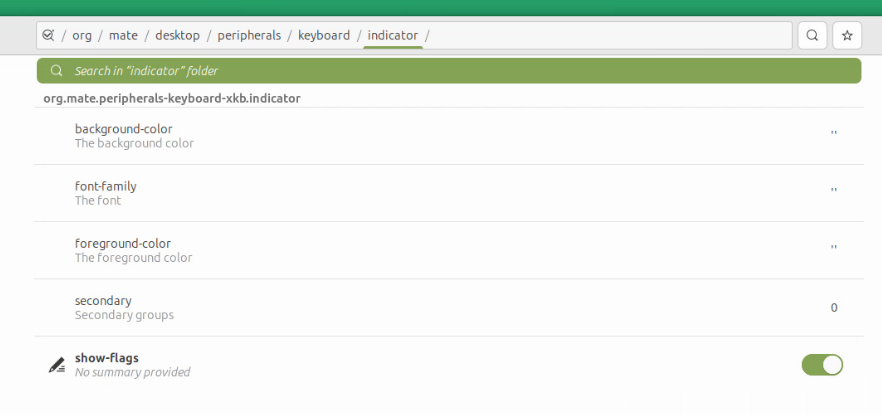
there should be a flag on the panel.
I added Greek language and the flag shows up.

1 Like
If you have more than one layout specified, the Panel will show the icon with the letter code for the layout, as shown here, to the right:

@pavlos_kairis, do you know how to push that indicator to the left end of the Indicator Applet? Also, is that position why I don't see the flags on my Panel?
1 Like
Eric, I used mate tweaks, changed the panel to something else, then back to traditional and the flag is as it appears in the screenshot. Then is no Move applet on the flags.
3 Likes
It does, after all! Not a flag, but the 2-letter code does appear. The only problem was that after I switched all of the look and feel to whatever Adwaita/Green Laguna or something that suits my needs, the panel ended up being snow-white, on which the snow-white letters were invisible.
 (I dunno why the image is skewed, but you still can get an idea)
Once my blood stopped boiling, I noticed the color of the panel, among other things, and changed it to the more customary light-gray. It was then when I saw the ‘en’ in the empty spot. So the visual presentation is dumb (indifferent to the color scheme) but works.
But still, no matter how many times I switch it among ‘en’, ‘fr’, ‘de’, ‘tr’, ‘cn’ or whatever languages I add to the list, the input remains the original en-US.
This is Mate 1.28.2 on a Hyper V VM. My 2-year old HW workstation that I am typing this from is running the same Mate 1.28.2 but on the previous version of the OS, and the switching works fine there. I am at a loss. Je suis perdue.
Maybe I can understand the Ctrl-Shift key combination not working over the FreeRDP/XRDP into that VM from my HW MATE desktop which uses the same, but the switching through the menu or click of the icon should have worked regardless of the remote access.
If you pull up the Keyboard Preferences pop-up, you will see the following:

If you click on each language individually, then click on Show, does the system present you with the proper key layout reflecting your keyboard for your language of choice?
An alternate method is to "track down" your keyboard device reference using
ls -l /dev/input/by-id/*-event-kbd
which for me gives
lrwxrwxrwx 1 root root 9 Nov 20 13:32 /dev/input/by-id/usb-dakai_02c0-event-kbd -> ../event3
If you then enter the following command, it will report all the specifics related only to your keyboard:
udevadm info --query=property --name=/dev/input/${eventID}
which gives you a report like this:
DEVPATH=/devices/pci0000:00/0000:00:12.0/usb1/1-3/1-3:1.0/0003:0E6A:02C0.0002/input/input6/event3
DEVNAME=/dev/input/event3
MAJOR=13
MINOR=67
SUBSYSTEM=input
USEC_INITIALIZED=26227674
ID_INPUT=1
ID_INPUT_KEY=1
ID_INPUT_KEYBOARD=1
ID_VENDOR=dakai
ID_VENDOR_ENC=dakai
ID_VENDOR_ID=0e6a
ID_MODEL=02c0
ID_MODEL_ENC=02c0
ID_MODEL_ID=02c0
ID_REVISION=6e05
ID_SERIAL=dakai_02c0
ID_TYPE=hid
ID_BUS=usb
ID_USB_INTERFACES=:030101:
ID_USB_INTERFACE_NUM=00
ID_USB_DRIVER=usbhid
ID_PATH=pci-0000:00:12.0-usb-0:3:1.0
ID_PATH_TAG=pci-0000_00_12_0-usb-0_3_1_0
XKBMODEL=hp250x
XKBLAYOUT=us
XKBOPTIONS=compose:ralt,terminate:ctrl_alt_bksp,grp_led:caps,grp_led:num,grp_led:scroll,grp:alts_toggle
BACKSPACE=guess
LIBINPUT_DEVICE_GROUP=3/e6a/2c0:usb-0000:00:12.0-3
DEVLINKS=/dev/input/by-id/usb-dakai_02c0-event-kbd /dev/input/by-path/pci-0000:00:12.0-usb-0:3:1.0-event-kbd
TAGS=:power-switch:
CURRENT_TAGS=:power-switch:
That contains the details which the more expert in the Community can probe further about ... or ... give you specific direction on how to "repair" the unwanted condition.
A more pinpoint approach to reporting ... the most relevant values in current use ... is by using the following three commands to obtain the current settings, following which you can then set you choice to tweak more specifically
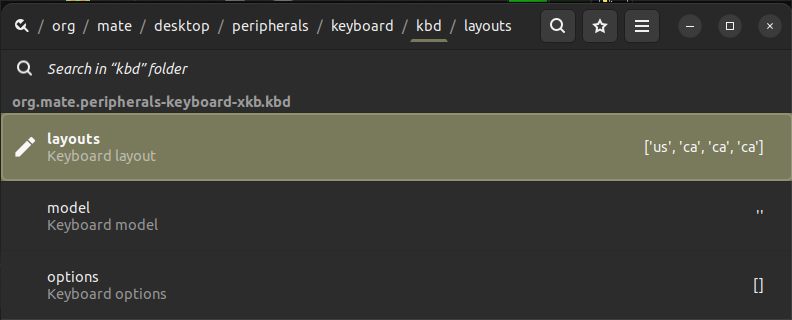
gsettings get org.mate.peripherals-keyboard-xkb.kbd layouts

gsettings get org.mate.peripherals-keyboard-xkb.kbd model

gsettings get org.mate.peripherals-keyboard-xkb.kbd options
You can access those directly while in dconf-editor by following the path
/org/mate/desktop/peripherals/keyboard/kbd
I don't fully understand how to parse the following, but the files containing the keyboard variants are located as follows (for german):
/usr/share/X11/xkb/symbols/de
Where X11 gets it all. The "database" is located under
/usr/share/X11/xkb
By doing ls * inside that directory, you see the building blocks used for the various elements:
compat:
accessx  caps      iso9995  ledcaps     lednum     level5       misc       olpc  pc98    xfree86
basic    complete  japan    ledcompose  ledscroll  Makefile.in  mousekeys  pc    README  xtest

geometry:
amiga    dell          fujitsu  keytronic  Makefile.in  nokia      README    sony         teck        winbook
ataritt  digital_vndr  hhk      kinesis    microsoft    northgate  sanwa     steelseries  thinkpad
chicony  everex        hp       macintosh  nec          pc         sgi_vndr  sun          typematrix

keycodes:
aliases  ataritt       empty  fujitsu  ibm    macintosh    olpc    sgi_vndr  sun      xfree98
amiga    digital_vndr  evdev  hp       jolla  Makefile.in  README  sony      xfree86

rules:
base             base.lst  evdev             evdev.lst  README   xkb.dtd  xorg.lst
base.extras.xml  base.xml  evdev.extras.xml  evdev.xml  xfree98  xorg     xorg.xml

symbols:
af      bw            eg            group       ke      ma              nl          sgi_vndr    trans
al      by            empty         hp_vndr     keypad  macintosh_vndr  no          sharp_vndr  tw
altwin  ca            epo           hr          kg      Makefile.in     nokia_vndr  shift       typo
am      capslock      es            hu          kh      mao             np          si          tz
apl     cd            et            id          kpdl    md              olpc        sk          ua
ara     ch            eu            ie          kr      me              parens      sn          us
at      cm            eurosign      il          kz      mk              pc          sony_vndr   uz
au      cn            fi            in          la      ml              ph          srvr_ctrl   vn
az      compose       fo            inet        latam   mm              pk          sun_vndr    xfree68_vndr
ba      ctrl          fr            iq          latin   mn              pl          sy          za
bd      cz            fujitsu_vndr  ir          level2  mt              pt          terminate
be      de            gb            is          level3  mv              ro          tg
bg      digital_vndr  ge            it          level5  my              rs          th
br      dk            gh            jolla_vndr  lk      nbsp            ru          tj
brai    dz            gn            jp          lt      nec_vndr        rupeesign   tm
bt      ee            gr            jv          lv      ng              se          tr

types:
basic  cancel  caps  complete  default  extra  iso9995  level5  Makefile.in  mousekeys  nokia  numpad  pc  README
The judicious selection of characteristics described in each of those sub-databases allow Users to fully customize the layout, and key assignments for their keyboards.
If the issue is trying to get a better fitting "key placement" layout, you need to look at one of the various layout "families" listed in
/usr/share/X11/xkb/geometry
for example choose "pc" and look for container delimiter lines of the form
xkb_geometry "pc105" {
which in that case specifies layout "pc105". Those labels are the options for layouts. However, all the choices available can be listed with a single command as follows:
localectl list-x11-keymap-models
That deals with the physicality of key arrangement, and the different choices re-assign the functional values of each key.
You have to persevere, being patient in trying many different layout specifications, even those at times that may not be obvious by name only, but could have be a usable, workable, or best-fit selection, to actually look at the image of the layouts to confirm the desired functional assigment for each of the keys on the keyboard.
Finally when all is said and done, and you've commited all your changes, the final configuration is saved by the system in the file
/etc/default/keyboard
which will look something like this:
# KEYBOARD CONFIGURATION FILE

# Consult the keyboard(5) manual page.

#XKBMODEL="pc105"
# Hewlett-Packard NEC SK-2500 Multimedia
# Description string from:   /usr/share/console-setup/KeyboardNames.pl
XKBMODEL="hp250x"

XKBLAYOUT="us"
XKBVARIANT=""

#XKBOPTIONS=""
XKBOPTIONS="compose:ralt,terminate:ctrl_alt_bksp,grp_led:caps,grp_led:num,grp_led:scroll,grp:alts_toggle"

# If you don't want to use the XKB layout on the console, you can
# specify an alternative keymap.  Make sure it will be accessible
# before /usr is mounted.
# KMAP=/etc/console-setup/defkeymap.kmap.gz
BACKSPACE="guess"

#text for language
gsettings set org.mate.peripherals-keyboard-xkb.indicator true

#flag for language
gsettings set org.mate.peripherals-keyboard-xkb.indicator show-flags true

gsettings set org.mate.peripherals-keyboard-xkb.kbd layouts "['us','ca','ca','ca']"
gsettings set org.mate.peripherals-keyboard-xkb.kbd variants "[,,'eng','multix']"

#/usr/share/X11/xkb/types

###
###	To report current configuration:
###
#root@OasisMega1:~# setxkbmap -query
#rules:      evdev
#model:      hp250x
#layout:     us,ca,ca,ca
#variant:    ,,eng,multix
#options:    terminate:ctrl_alt_bksp,grp_led:caps,grp_led:num,grp_led:scroll,grp:alts_toggle
#root@OasisMega1:~#

###
###	More verbose report:
###
#root@OasisMega1:~# setxkbmap -print -verbose 10
#Setting verbose level to 10
#locale is C
#Trying to load rules file ./rules/evdev...
#Trying to load rules file /usr/share/X11/xkb/rules/evdev...
#Success.
#Applied rules from evdev:
#rules:      evdev
#model:      hp250x
#layout:     us,ca,ca,ca
#variant:    ,,eng,multix
#options:    terminate:ctrl_alt_bksp,grp_led:caps,grp_led:num,grp_led:scroll,grp:alts_toggle
#Trying to build keymap using the following components:
#keycodes:   evdev+aliases(qwerty)
#types:      complete
#compat:     complete+lednum(group_lock)+ledcaps(group_lock)+ledscroll(group_lock)
#symbols:    pc+us+ca:2+ca(eng):3+ca(multix):4+inet(evdev)+level3(ralt_switch_for_alts_toggle):1+level3(ralt_switch_for_alts_toggle):2+level3(ralt_switch_for_alts_toggle):3+level3(ralt_switch_for_alts_toggle):4+group(alts_toggle)+terminate(ctrl_alt_bksp)
#geometry:   pc(pc104)
#xkb_keymap {
#	xkb_keycodes  { include "evdev+aliases(qwerty)"	};
#	xkb_types     { include "complete"	};
#	xkb_compat    { include "complete+lednum(group_lock)+ledcaps(group_lock)+ledscroll(group_lock)"	};
#	xkb_symbols   { include "pc+us+ca:2+ca(eng):3+ca(multix):4+inet(evdev)+level3(ralt_switch_for_alts_toggle):1+level3(ralt_switch_for_alts_toggle):2+level3(ralt_switch_for_alts_toggle):3+level3(ralt_switch_for_alts_toggle):4+group(alts_toggle)+terminate(ctrl_alt_bksp)"	};
#	xkb_geometry  { include "pc(pc104)"	};
#};
#root@OasisMega1:~#

###
###	X Keyboard Symbols
###
#/usr/share/X11/xkb/symbols
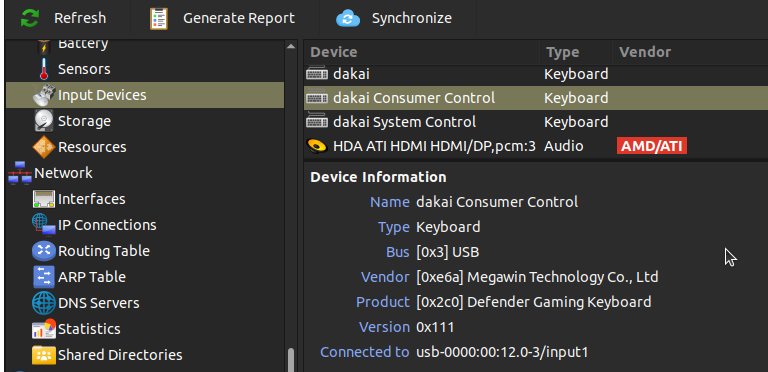
Lastly, a more universal tool for tracking down that kind of detail, if you don't have it already, is the
hardinfo2
You should consider having that handy. After bringing that up, look under "Input Devices", then "Keyboard", and consider sharing the details with the Community. That will look like this:
You might also entertain visiting the actual
to see if you can
- raise awareness, or even
- attract a Champion Developper,
who could then approach, with greater direct access, those connected with the
which is where you most likely need to raise the issue officially.

3 Likes
The notion that we have to go through this torture, in 2025 is ludicrous. Linux VMs, including MATE, knew how to switch keyboard layouts, all the way between the advent of desktop hypervisors and all the way up to the 2020s. But then someone decided to throw a wrench into that practice. There is no chance in hell that it was accidental.