The Myth of Linux Optimization Tools, and Why You Really Don’t Need Them At All

The Myth of Linux Optimization Tools
Linux optimization tools often promise to speed up your system, clean junk files, and make everything run smoother. But most of the time Linux is already doing those things on its own. In many cases, these tools are simply placing a fancy button on top of tasks your system already handles automatically.

A good example is RAM usage. When you open your system monitor and see memory usage sitting at 80–90%, it might look alarming at first. But in Linux, unused RAM is basically wasted RAM. The kernel intentionally uses available memory to cache files, libraries, and application data so programs launch faster the next time you open them.

When you run a memory cleaner to bring that number down, you’re often doing the opposite of optimization. You force the system to drop useful cached data, which means it has to fetch the same information again from the much slower disk later.

Do you use Linux Optimization Tools? Do you agree or disagree about their usefulness?

5 Likes

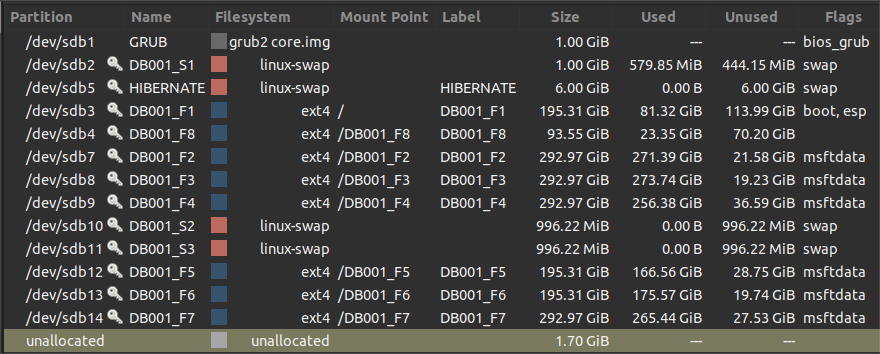
When it comes to files :open_file_folder:: After my first ever taste of a Disk Analyser tool in Linux (and later found WinDirStat for Windows, I tend to like keeping the partition clean & minimal and erase files that seem temporary :broom: :wastebasket:

Naturally, I found programs do place things outside the conventional home structure (~/.cache, ~/.config, ~/.local/share). Some of this could be simply be due to development tools I use. The messy caches are programs using embedded web engines, like VS Code.

For me, once I know where they are, I simply have a clean-up-junk script that automates the clean up of ~/.cache, Gem/Ruby caches, GPU shaders, Chromium-based folders {Cache,CachedData,CachedExtensionVSIXs,GPUCache,logs}, Steam, VirtualBox logs, and also any recents and crash reports (Firefox, coredump) or other known areas that grow if left unchecked.

I go a step further and delete things as root: like unused /usr/share/locale/, vacuum systemd logs and make sure orphan packages are uninstalled.

Just now, running the script: my disk went from 27.3 GiB → 31.4 GiB free. (+ 4.1 GiB!) I usually do this just before I do a root partition backup... so, I'd say yes - they can useful for beginners or to keep backups light - if you know what you're doing. Obviously, don't use BleachBit to "Clean free space" on an SSD!

Do you need to? Not really.

For RAM? No, that would be pointless, it's normal as you say. It's only useful for testing uncached I/O:

sudo bash -xc 'echo 3 > /proc/sys/vm/drop_caches; sync; echo 3 > /proc/sys/vm/drop_caches'
4 Likes

I don’t think I run any optimization apps on linux, I do run things like bleachbit, czkawka and stacer but I would not call them optimization tools… maybe stacer, but that’s it. I do like to keep things clean so certainly native tools like apt autoremove or apt clean, thing like that but nothing else really.

I do use fsearch or disk usage analyzer but that is only to manage duplicate files or when deciding what to move to what drive… things like that.

The one thing I don’t do on linux I used to have to do frequently in win is defragging. Disk fragmention rarely goes above 2% on linux so I don’t really see the point.

3 Likes

Same here. I don't run so called "optimization" tools at all.
I don't see the point. It runs optimal already, by design.

Although I have BleachBit and a script to vacuum journald, I don't use them for optimization, rather as side tools for troubleshooting and occasional cleanup. I don't use them more than once or twice a year and only for specific reasons.

b.t.w. I never do a root partition backup. I have a postinstall script instead, which is, in the end, easier and more up to date .

4 Likes

Indeed. It only causes a lot of unnecessary wear of the SSD.
If you want to 'wipe' the free space, the only thing needed is 'trim' which is already done weekly by the system.

4 Likes

Thom, would you be willing to share that script with us?


For me, optimization is limited manual operations, and those for the following:

2 Likes

Sure, but I doubt it would be of value to others.
It's just a menu driven apt-get install list with some setting functions for tweaks and preferences.

Also, it calls three external scripts. I planned to make it even more modular but it is what it is.

Keep in mind though that I haven't had to use it since luke stopped with the software boutique. It definitely needs some minor changes to make it up to date again.

Here it is:

#!/bin/bash

# install lists
system=( openssh-server mlocate gnome-disk-utility dconf-editor synaptic htop mc )
tools=( python-is-python3 wxglade tcc nmap iotop iftop hardinfo bleachbit )
audiovideo=( audacious audacity python3-aeidon gaupol mpv pulseeffects lsp-plugins asunder easytag pavucontrol soundconverter mediainfo mediainfo-gui caja-mediainfo )
graphics=( gimp gimp-plugin-registry inkscape pdfarranger darktable gthumb )
games=( kpat ksudoku pathological pipewalker monsterz black-box mah-jong gnome-mahjongg )
office=( gelemental libreoffice  thunderbird )

# installers
HostRestore()
{
cat<<HOSTFILE |sudo tee /etc/hosts

# This contains the hostfile entries. I've censored this for privacy reasons

HOSTFILE
}

DeCSS()
{
	sudo apt install libdvd-pkg && sudo dpkg-reconfigure libdvd-pkg
}
YtDlp()
{
	yt_dlp_url="https://github.com/yt-dlp/yt-dlp/releases/latest/download/yt-dlp"
	yt_dlp_dest="/usr/local/bin/yt-dlp"

	[ -f "$yt_dlp_dest" ] && echo "already installed" && return
	sudo wget "$yt_dlp_url" -O "$yt_dlp_dest" && sudo chmod a+rx "$yt_dlp_dest"
}
BDkeys()
{
	bd_keys_url="https://code.videolan.org/videolan/libaacs/blob/master/KEYDB.cfg"
	bd_keys_dir="$HOME/.config/aacs"

	[ -f "$bd_keys_dir/KEYDB.cfg" ] && echo "already installed" && return
	mkdir -p "$bd_keys_dir" && wget "$bd_keys_url" -O "$bd_keys_dir/KEYDB.cfg"
}
PlankMateThemeCreate()
{
	[ -z "$1" ] && return
	plank_cfg_dest="/usr/share/plank/themes/$1"
	plank_cfg_src="/usr/share/plank/themes/Ubuntu-MATE"
	sed "s|FillStartColor=.*|FillStartColor=${FillStartColor}|g" "$plank_cfg_src/dock.theme" |\
	sed "s|FillEndColor=.*|FillEndColor=${FillEndColor}|g" > "dock.theme"
	sudo mkdir -p  "$plank_cfg_dest"
	sudo mv "dock.theme" "$plank_cfg_dest/dock.theme"
}
PlankMateThemeGrey()
{
	FillStartColor="66;;66;;60;;150"
	FillEndColor="78;;76;;70;;255"
	PlankMateThemeCreate "Ubuntu-MATE-grey"
}
PlankMateThemeBlack()
{
	FillStartColor="0;;0;;0;;150"
	FillEndColor="0;;0;;0;;255"
	PlankMateThemeCreate "Ubuntu-MATE-black"
}
WebpCompat()
{
	sudo add-apt-repository ppa:helkaluin/webp-pixbuf-loader
	sudo apt update
	sudo apt-get install webp-pixbuf-loader
}
DnsCryptProxy()
{
	sudo apt install dnscrypt-proxy
	cat<<-DNSDOC1

	To use DNSCrypt Proxy 2, change IPv4 settings in networkmanager

	 	Method: Automatic, DHCP-adresses only
	 	DNS-servers: 127.0.2.1

	doublecheck on IP-settings of dnscrypt-proxy

	DNSDOC1
	grep Listen /lib/systemd/system/dnscrypt-proxy.socket
	cat<<-DNSDOC2

	change it here if you must: /lib/systemd/system/dnscrypt-proxy.socket

	DNSDOC2
	# classic DNS-addresses: 1.1.1.1, 1.0.0.1, 8.8.8.8, 45.143.197.10
}
BlockScreenblank()
{
	configfile='/usr/share/lightdm/lightdm.conf.d/50-xserver-command.conf'

	sudo sed -i "s|xserver-command=.*|xserver-command=X -dpms -core|g" "$configfile"

	cat<<-XSET_DESKTOP > ~/.config/autostart/xset.desktop
		[Desktop Entry]
		Type=Application
		Exec=xset -dpms s off s noblank s 0 0 s noexpose
		Hidden=false
		X-MATE-Autostart-enabled=true
		Name[nl_NL]=noblank
		Name=noblank
		Comment[nl_NL]=Voorkomt het op zwart zetten van het scherm
		Comment=Prevents screen from blanking
		X-MATE-Autostart-Delay=0
	XSET_DESKTOP

	gsettings set org.mate.SettingsDaemon.plugins.media-keys screensaver '<Mod4>l'
	gsettings set org.mate.Marco.global-keybindings run-command-1 ''
}
#global
Anykey()
{
	read -s -n1 -r -p"press a key..."
}
Confirm()
{
	read -s -n1 -r -p"${1} [j/N]"
	case "$REPLY" in Y|y|J|j ) return 0 ;; esac ; return 1
}
declare -u choice
while :
do
	clear
	cat<<-MENU
	____________________________________

	postinstall

	[0] dnscrypt-proxy
	[1] ${system[@]}
	[2] ${tools[@]}
	[3] ${audiovideo[@]} + DeCSS
	[4] ${graphics[@]}
	[5] ${games[@]}
	[6] ${office[@]}
	[7] yt-dlp
	[8] blueray keys
	____________________________________

	Bugfixes

	[A] change slideshow folder
	[B] missing icons fix
	[C] add plank MATE theme in grey
	[D] add plank MATE theme in black
	[E] config Logitech M570 zoombuttons
	[F] Webp Compatibility
	[G] Prevent all screenblanking
	[H] hostfile restore
	____________________________________

	[Q]uit
	[R]eload
	____________________________________
	get 'non-repo' apps like:
	opera, brave, google-earth, make-mkv
	from boutique


MENU
	read -s -n1 -r choice
	case "$choice" in
	0) DnsCryptProxy ;;
	1) sudo apt-get install ${system[@]} ;;
	2) sudo apt-get install ${tools[@]} ;;
	3) sudo apt-get install ${audiovideo[@]} ; DeCSS ;;
	4) sudo apt-get install ${graphics[@]} ;;
	5) sudo apt-get install ${games[@]} ;;
	6) sudo apt-get install ${office[@]} ;;
	7) YtDlp ;;
	8) BDkeys ;;
	A) ./slideshowmap	 ;;
	B) ./missing_icons_fix ;;
	C) PlankMateThemeGrey ;;
	D) PlankMateThemeBlack ;;
	E) ./logiconfig ;;
	F) WebpCompat ;;
	G) BlockScreenblank ;;
	H) HostRestore ;;
	Q) exit ;;
	R) exec $0 ;;
	@) pluma $0 & ;;
	esac
	Anykey
done

You definitely inspired me to look at the code again :slight_smile:
I think I will split it in several scripts and use run-parts instead of a menu.

3 Likes

Thank you, Thom. I will be reviewing that in detail to see if there is anything I should adopt for my own system.

:slight_smile:

2 Likes

No problem, and if there is anything not clear, just ask :slight_smile:

2 Likes