Hello,
In the Ubuntu Mate distribution (as in others), I don't see any graphical interface module for color and brightness settings.
Do you know brightness-controller package who can be installed by repository installation (ppa:apandada1/brightness-controller) ?
This could be relevant for Ubuntu Mate !!. @
As my knowledge, there is no commands to change color. But, there is for brightness. Here is my script to change brightness, take a look:
3 Likes
Effectively, but this package can do it.
Best regard, Kris.
2 Likes
ugnvs
20 January 2026 13:17
4
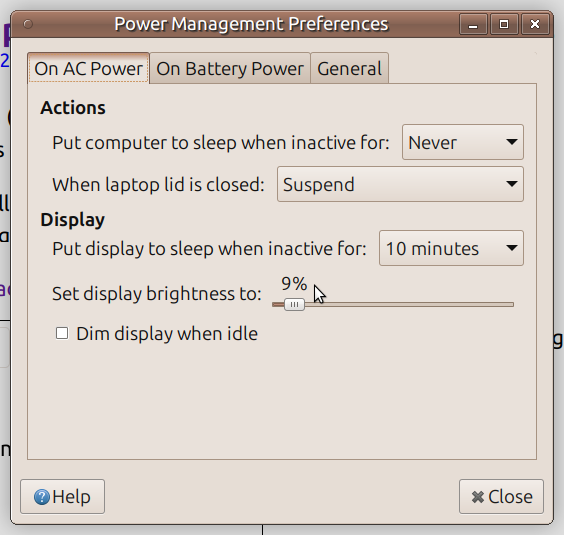
Ubuntu Mate GUI laptop brightness control belongs to Power management menu dialogue.
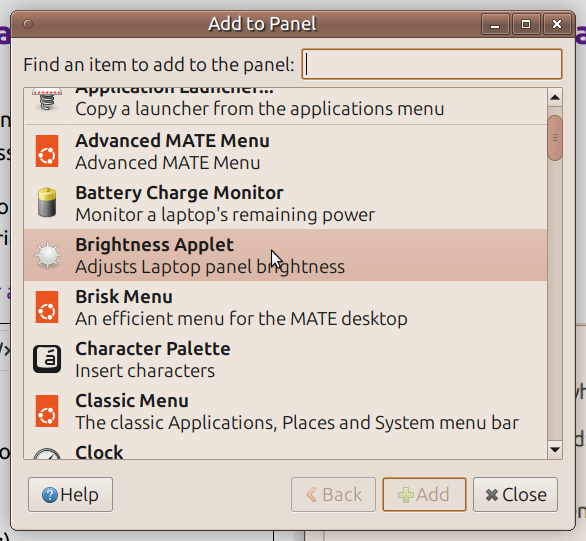
It is also possible to add LCD Brightness applet to Mate panel
1 Like
Yes, it do it for brightness adjustments, but to adjust RGB colorimetry, there is no package to.
So I installed Brightness-Controller, which allows me to adjust the colors.
I have never found a graphical interface package to adjust RGB colors otherwise this. @
1 Like
Merci, Philippe!
I've tweaked the script as follows:
coded a specific generic MATE icon path, and
re-formatted some code for visibility and ease of modification. You may take ownership if you desire.
Modified script:
#!/bin/bash

# Script to add an icon in the notification area,
# to set the screen's brightness, by right clic

# Require yad : sudo apt install yad

get_active_monitors()
{
	# VGA-0 connected primary 1440x900+0+0 (normal left inverted right x axis y axis) 370mm x 230mm
	xrandr | awk '/[ ]connected/ && /[[:digit:]]x[[:digit:]].*+/{print $1}'
}

# Confirm existence of icon for Panel display
brightnessIcon="/usr/share/icons/mate/scalable/status/display-brightness-symbolic.svg"

if [ ! -s "${brightnessIcon}" ]
then
	echo -e "\n\t Unable to locate ICON specified for Panel App:"
	echo -e   "\t => '${brightnessIcon}'"
	echo -e "\n\t Please update script with appropriate PATH reference to a suitable ICON."
	echo -e   "\t Abandoned.\n" ; exit 1
fi

# Name of the screen
DisplayName=$(get_active_monitors)

# set by default
xrandr --output "$DisplayName" --brightness 1.00

# set brightness
nohup yad --notification \
	--no-middle \
	--command="" \
	--text="Select the brightness" \
	--image="${brightnessIcon}" \
	--menu='Set the brightness|125%!xrandr --output '$DisplayName' \
	--brightness 1.25|112%!xrandr --output '$DisplayName' \
	--brightness 1.12|100%!xrandr --output '$DisplayName' \
	--brightness 1.00|95%!xrandr  --output '$DisplayName' \
	--brightness 0.95|90%!xrandr  --output '$DisplayName' \
	--brightness 0.90|85%!xrandr  --output '$DisplayName' \
	--brightness 0.85|80%!xrandr  --output '$DisplayName' \
	--brightness 0.80|75%!xrandr  --output '$DisplayName' \
	--brightness 0.75|70%!xrandr  --output '$DisplayName' \
	--brightness 0.70|65%!xrandr  --output '$DisplayName' \
	--brightness 0.65|60%!xrandr  --output '$DisplayName' \
	--brightness 0.60|55%!xrandr  --output '$DisplayName' \
	--brightness 0.55|50%!xrandr  --output '$DisplayName' \
	--brightness 0.50|45%!xrandr  --output '$DisplayName' \
	--brightness 0.45|40%!xrandr  --output '$DisplayName' \
	--brightness 0.40|35%!xrandr  --output '$DisplayName' \
	--brightness 0.35|30%!xrandr  --output '$DisplayName' \
	--brightness 0.30|Quit!quit' >>/dev/null 2>/dev/null &

exit 0
4 Likes
tkn
21 January 2026 16:47
7
Thanks ! Downloaded and tested it. Works beautifully.
1 Like
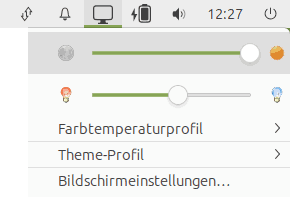
Another option: ayatana-indicator-display
—–
Sometimes another option: DDC/CI DDC/CI ". Or simple install and try one the programs:ddcui gddccontrol ddccontrol
Brightness control can technical done in different ways:
in software (mostly all tools does this ; expect the applet laptop-dimmer)
in hardware (use the settings / menu directly in your external monitor (= use the hardware buttons), or use DDC/CI if supported)
At least in the past was dimming in hardware the bedder solution (only valid for non OLED-Screens): less milky , bedder contrast , darker black. That’s because the backlight wasn’t also dimming at the same time. I think newer monitors are now more clever and maybe compensate this problem.
5 Likes
Hi, @JoeKusters and welcome to the Ubuntu MATE Community!
Well, It's an interesting project to undertake.
I’ll pay attention to it. Thank @
1 Like
Norm24
22 January 2026 15:49
11
+1 for ayatana-indicator-display
1 Like
Thank you, Joe!
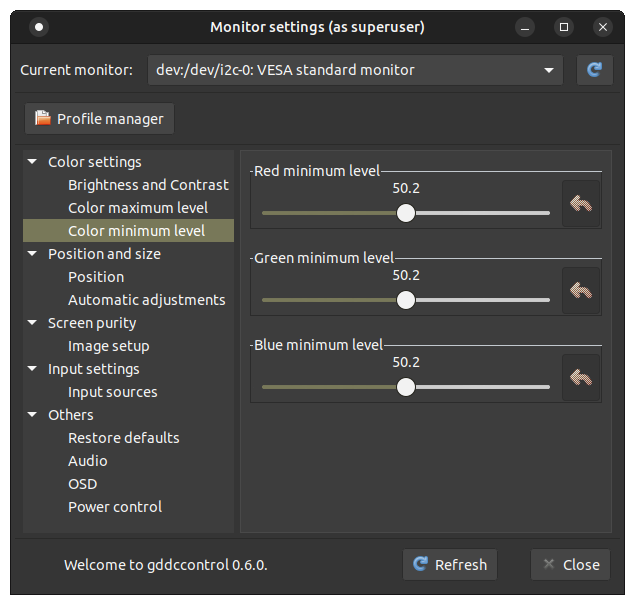
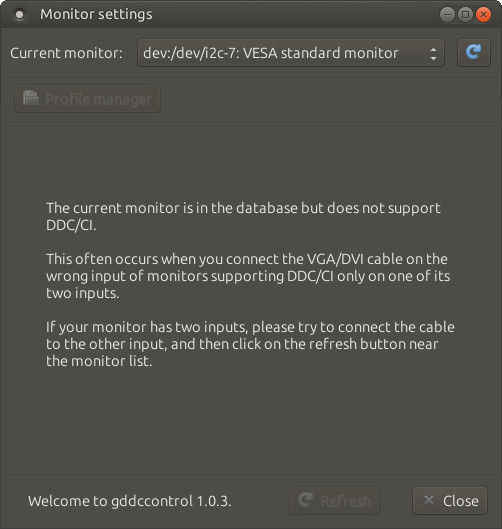
In my case, there was no ddcui to be found, but I did find
which presents as the following on UM 22.04.5 :
1 Like
tkn
28 January 2026 17:23
13
Ow, that's a bummer; gddccontrol does not work here. My monitor is probably too old because of buggy firmware (which I mentioned before )
I only have one DVI_D and one VGA on my monitor
(VGA not in use because, there is no VGA on my AMDGPU)
No problem however: your script does the job perfectly.
2 Likes
tkn
28 January 2026 20:03
14
ayatana-indicator-display
Sounded like a good idea to me. both monitor and PC got everything back working again.
1 Like