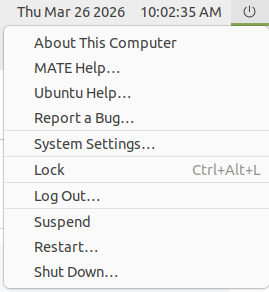
Is there a keyboard shortcut for the top right menu (that includes menu items such as “About this computer”, “Report a Bug…” and “System Settings”) or a way to keyboard-navigate to it somehow?
1 Like
Hi, @santos and welcome to the Ubuntu MATE Community!
1 Like
Under Preferences, there is a "Keyboard Shortcuts" choice.
I am not sure if it covers what you want, but it would allow you to create that if necessary.
1 Like
AFAIK, Mate DE does not have “About this computer”, “Report a Bug…” menu items. At least, my installation does not have them. As to "System Settings":
<alt>-F1 opens top panel left menu by default.
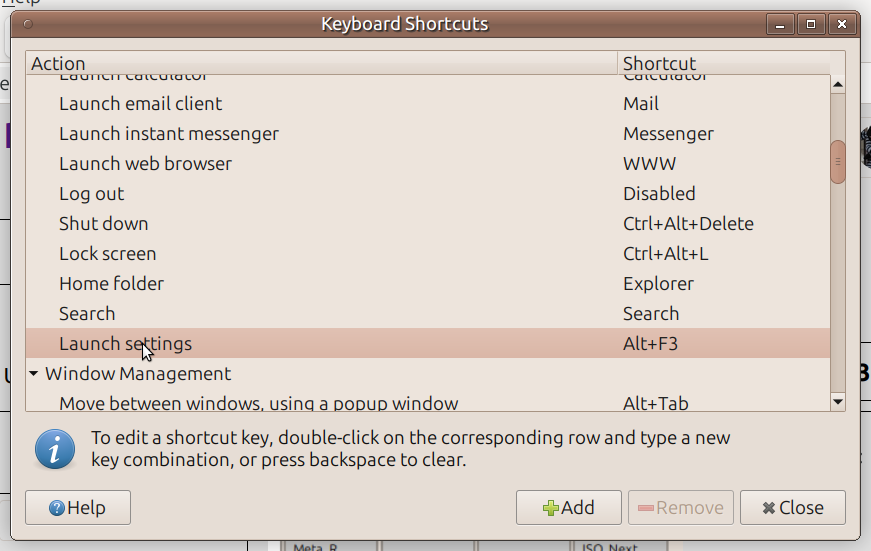
System -> Preferences -> Hardware -> Keyboard shortcuts menu item invokes dialogue which allows to assign keyboard shortcut to Control Center. The latter includes mentioned "System Settings" of your interest.
1 Like
The Op is referring to the ⏻ button.If you click on it you're presented with those options.
2 Likes
Hey, Eugene. I just confirmed that the AltF1 combination does not pop up the menu at the panel top-left. 
It seems to pop up (hard-coded?) the "Compact Menu"!
Mine is the Brisk menu, but that does not pop up! That is a disappointment ... but good to know.
2 Likes
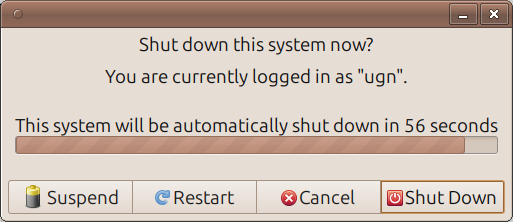
I always use Traditional panel layout. Can not recall if I have customised it somehow: most probably not. Chances are that Traditional panel layout looks a bit different. That is pressing ⏻ button invokes the following window:
1 Like
I believe the OP is referring to the indicator applet. In my case I use Indicator Applet Complete and when you click on the power button you're presented with a drop down menu with the options in the OP's first post.
2 Likes
On my desktop, the Super Key (a.k.a. Windows) activates the Brisk Menu. Alt+F1 activates the compact menu at the current cursor location.
2 Likes
Thank you, Dave! I can confirm  indeed opens the Brisk menu.
1 Like
I've done some digging and research, and I have a proposed solution to your request for a keyboard shortcut. The following bash script works for me on Ubuntu Mate 24.04, with the panel layout set to "Familiar". You'll need to install xdotool if it isn't already installed.
#!/bin/bash
xdotool search --onlyvisible --name "mate-indicator-applet-complete" windowfocus --sync key --clearmodifiers Left
EDITED: Although the script initially failed when I tried to create a keyboard shortcut for it, that problem was solved by replacing the batteries in my wireless keyboard. 
For those interested in how the script works, it chains together three separate commands for xdotool:
xdotool search --onlyvisible --name "mate-indicator-applet-complete"identifies the X window ID of the Ayatana Indicator Complete applet. This applet implements the system tray where the Session Menu (far right), date, time, Bluetooth, etc. icons reside. The tray's window, however, has quite a few child windows with the same name, so it's necessary to use the--onlyvisibleoption to narrow the search results to the single, top-level window for the tray.windowfocus --synctransfers the keyboard focus to the window identified by the preceding search command. The--syncoption blocks the command from continuing until the targeted window is actually ready to receive keystrokes.key --clearmodifiers Leftsends a left cursor keystroke to the tray window. When the tray received focus, the icon at the left end was ready to receive input, although this doesn't show. Pressing the left cursor key causes the focus to "wrap around" to the right-most icon, dropping down the session menu. The--clearmodifiersoption is necessary because the command is triggered by a keyboard shortcut, and the user may still be pressing a modifier key (Ctrl, Shift, Alt, or Super) when the command runs. This would alter the Left keystroke to Ctrl+Left (or whatever modifier keys are down), which wouldn't have the desired effect.
4 Likes
@DaveHighland thanks, that works for me, including the shortcut, i’ve assign it to super+space.
assuming your script has execute permission, does your custom shortcut command include the full path to the script or otherwise is your script on the $PATH?
2 Likes
You are most welcome, @santos.
I put the script in /usr/local/bin and checked the box for "Allow executing file as program" on the Permisssions tab of that file's caja Properties dialog. This requires admin privileges, but makes the script available to any user.
(BTW: After I changed the AAA batteries in my Logitech wireless keyboard, the shortcut works every time. Duh.  )
)
And just a reminder: Since this shortcut script works for you, please mark my response with the script snippet as the solution. (Click on the three dots at the end of that reply and then click on the icon for "Solved".) Thanks.
2 Likes
Could we follow up on this by suggesting a shortcut to this menu to be included in Ubuntu Mate?
I'd find it natural for the super key to provide access to the top left menu (favourites, all, accessories, ..., control center), as it currently does, and then the left/right keys to allow navigating along the top bar. This would allow one to, after pressing the super key and accessing the top left menu,
- press Left and jump to the session menu
- press right and jump to the first element of the indicator applet
Would this make sense to you?
1 Like
I think this suggestion has merit. I know there has been some decline in UM regarding accessibility support, and being able to access the session menu from a keyboard shortcut would seem to be easier for the visually impaired than trying to navigate a mouse pointer to the session menu icon. Bear in mind, I'm not an authority on accessibility; it's just my take.
If you want to contribute this as a suggestion for the MATE desktop, I think the place to do so is here: Issues · mate-desktop/mate-panel · GitHub. The panel seems to be actively maintained: The last release was 1.28.6 on 5 September 2025.
1 Like
Thanks again, @DaveHighland and everyone else.
2 Likes