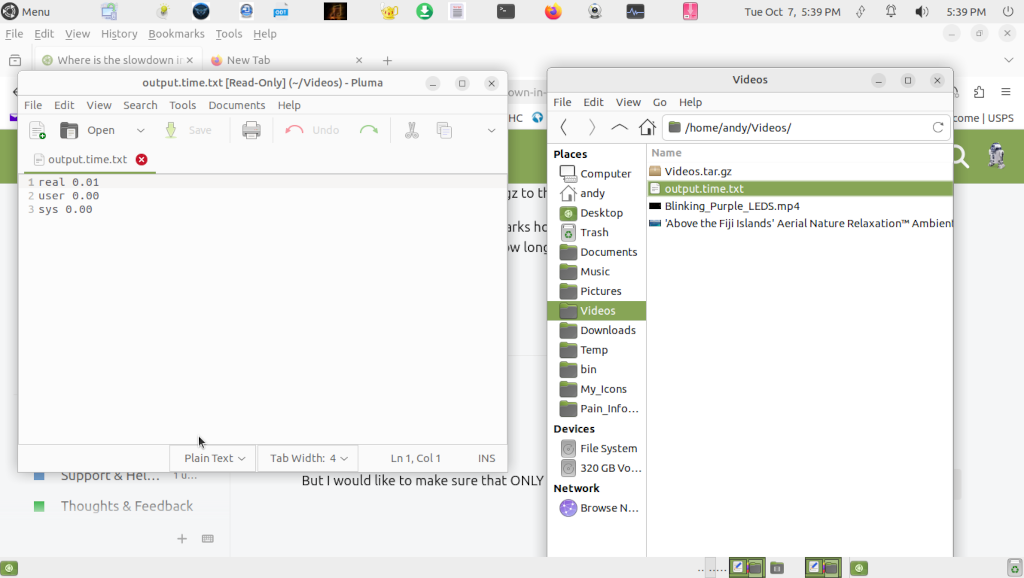
I think it is because I am not having the compression done for adding only newer files for the videos and my music.
#!/bin/bash
#
# Backup important files from hard drive to Maxtor drive
#

# Much help from https://ubuntu-mate.community/, https://community.unix.com,
# https://www.linux.org/,
# Some help from Ask_Ubuntu

Maxtor_Backup_Directory="/media/andy/5B7C-00C8/Backup/"
Seamonkey_Bookmarks_Dir="/home/andy/.mozilla/seamonkey/5rq2ecgo.default/"
Icons="/home/andy/My_Icons/"
Documents="/home/andy/Documents/"
Scripts="/home/andy/bin/"
Custom_Actions_config_Directory="/home/andy/.config/Thunar/"
Pain_And_Court_Items="/home/andy/Pain_Info_And_Court_Items/"
Videos="/home/andy/Videos/"

# send a note to /var/log/syslog
logger Backup of files to Maxtor Drive started.

#
cd /home/andy/.mozilla/firefox/07127fas.default-release/
tar czf Firefox_Bookmarks.tar.gz bookmarks.html
cp bookmarks.html $Documents
#
cd $Documents
tar czf Documents.tar.gz *.odt *.png *.docx *.txt *.pdf *.html
cp -a Documents.tar.gz $Maxtor_Backup_Directory
#
cd $Scripts
tar czf Scripts.tar.gz *.sh *.png *.txt
cp -a Scripts.tar.gz $Maxtor_Backup_Directory
#
cd $Icons
tar czf Icons.tar.gz *.png *.jpg
cp -a Icons.tar.gz $Maxtor_Backup_Directory
#
cd $Custom_Actions_config_Directory
tar czf Thunar_Custom_Actions.tar.gz *.xml
cp -a Thunar_Custom_Actions.tar.gz $Maxtor_Backup_Directory
#
cd $Pain_And_Court_Items
tar czf Pain_And_Court_Items.tar.gz *.odt *.png *.docx *.txt *.pdf *.html *.dotx *.jpg
cp -a  Pain_And_Court_Items.tar.gz $Maxtor_Backup_Directory
#
cd $Videos
tar czf Videos.tar.gz *.mp4
cp -a Videos.tar.gz $Maxtor_Backup_Directory
#

gxmessage -fg red -font 'sans 20' -timeout 2 "Backup is complete."
Yes, that is expexted: The script is producing compressed tar files, compressing takes time.
You might want to skip the whole "tar and zip" business and just copy the files since it is only about your personal directory.
Here is the script that I use for backup, I already customized it a bit for your usecase.
It is definitely faster.
#!/bin/bash

backupdirectory="/media/andy/5B7C-00C8/Backup/"

backuplist=(
".mozilla"
"My_Icons"
"Documents"
"bin"
".config"
"Pain_Info_And_Court_Items"
"Videos"
)

#message and log
msg() { notify-send "$1" ; logger "$1" ;}

# make directory when needed
if ! mkdir -p "$backupdirectory"
then msg 'error: missing backupdisk' ; exit 1
fi

# backup
for line in "${backuplist[@]}"
do
	if [ -e "$HOME/$line" ]
	then cp -au "$HOME/$line" "$backupdirectory"
	else msg "error: $HOME/$line does not exist" ; exit 1
	fi
done

msg  "Backup is complete."
OK I see, I'll have to let the script also do some extra troubleshooting for you.
#!/bin/bash

backupdisk="/media/andy/5B7C-00C8"
backupdirectory="$backupdisk/Backup"
backuplist=(
".mozilla"
"My_Icons"
"Documents"
"bin"
".config"
"Pain_Info_And_Court_Items"
"Videos"
)

#message and log
msg() { notify-send "$1" ; logger "$1" ; exit "$2" ;}

#diskcheck
[ -d "$backupdisk" ] || msg "your disk should be $backupdisk but it is not mounted" 1

#directorycheck
mkdir -p "$backupdirectory" || msg "Permission problem.
run `ls -hals '$backupdisk'` and provide the output when asking assistance" 2

# backup
for line in "${backuplist[@]}"
do
	if [ -e "$HOME/$line" ]
	then cp -au "$HOME/$line" "$backupdirectory"
	else msg "$HOME/$line does not exist" 3
	fi
done

msg  "Backup is complete." 0
time <command> will tell you how long it took and resources used.
time ls
real 0m0.007s user 0m0.000s sys 0m0.004s
You could use time to measure each step of your backup script and find out which step takes longer than expected. example: time tar -cfz andy.gz /home/andy/myfiles/
The first line tells me take all the mp4 in the Videos dir and tar/compress them. It will provide how long it took. The second line is the same idea without time. The third line will copy the videos.tar.gz to the maxtor drive.
Maybe you can run some benchmarks how long does it take to copy a {1,10,50} GB to the maxtor drive to get an idea how long it takes. I have no idea of your file sizes, are they 1, 5, 10 GB ?
I am trying to make a file or picture of an email for evidence in a court of
law.
I found this.
I could take multiple screen shots, but that is a pain.
How to print an email in Linux
To print an email in Linux, you can use the lp command or the printf command. Here's a simple guide to printing an email:
Using lp command: This command sends a file for printing. You can specify the file name or use the default printer. For example, lp <filename> will print the contents of the specified file to the default printer.
1
Using printf command: This command allows you to format the output and print it directly to the terminal. For example, printf "Hello, World! " > /dev/printer will print "Hello, World!" to the printer.
1
Using echo command: The echo command can also be used to print text directly to the terminal. For example, echo "Hello, World!" > /dev/printer will print "Hello, World!" to the printer.
1
Using cat command: The cat command can be used to concatenate and display the contents of files, but it can also be used to print text directly in the terminal. For example, cat > /dev/printer will print the contents of the standard input to the printer.
1
Using echo with variables: You can also use the echo command to print variables or the output of other commands. For example, echo "My name is $name." > /dev/printer will print "My name is John Doe" to the printer.
1
then use the following command to convert the individual pages into separate images (replace the # symbol by the Number-Of-Pages less 1, i.e. if total 5, enter 4):
convert ${NameOfYourPdfFile}[0-#] page-%d.jpg
You can manipulate the output resolution by adding the option