About a year ago I mentioned wanting a good desktop clock.
For my clock needs I've been using DS Clock via wine & it has served my need quite well…UNTIL=>
It will now only display on desktop1 (of 4) no matter what I’ve tried.
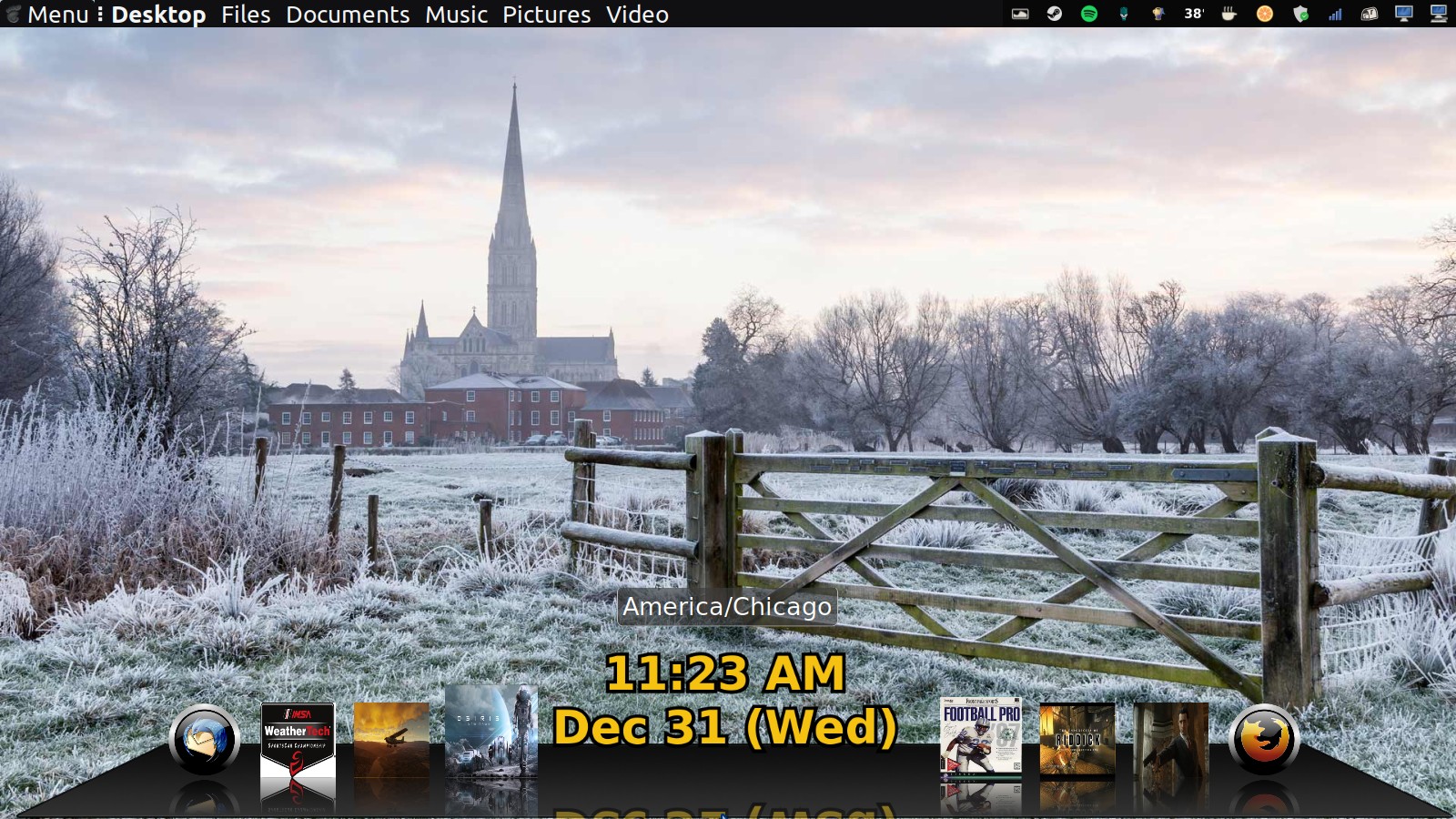
See screenshot below.
(I was using Dclock found in Synaptic, but it is not nearly as good.)
So now I either need to somehow trick it into showing on ALL desktops once again, or start using another (or a 2nd ?!?) clock app.
I've looked at all the clock apps I could find via various searches but have found nothing very good.
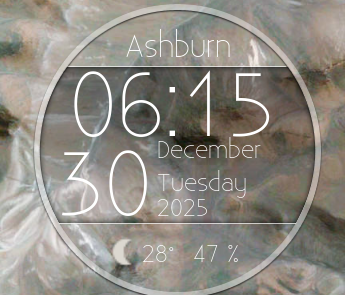
I've been using my-weather-indicator as my desktop clock. It shows on every desktop and it can hide behind windows or remain in front. As the name suggests, in addition to being a clock, it shows the current weather conditions in my location (configurable).
The only down side I've found that if I set it to launch on startup, it places itself on my main monitor, and I rarely sit in front of the computer, so I have to manually start it on my remote display after every boot.
sudo add-apt-repository ppa:atareao/atareao
sudo apt update
sudo apt install my-weather-indicator   ```

Here's a screen shot of mine:
I too have my-weather-indicator.
It is always visible on all my desktops - BUT:
I see no option for a clock in its prefs... mine shows day & date, but no time.
I too have time showing in my bottom panel - but it is too small vs. DS Clock which lives at the top right & is ~3/8” x 4” in size which makes it quite visible for these old eyes !!
To each his own. I hate docks and overlays on my screen. Glad we can both get what we want, there are some Commercial, paid for OS's where that is not possible.
Thanks for the Conky code GeekBone - I shall try using it later today.
Jymm - I found that the best dock for me is no dock - I do however need a very visible clock as time tends to fly by me & there are important daily things I must tend to on time.
As to payware OSes - such things are ‘against my religion’ so to speak - this OS has been perfect for all my needs & what little windoze freeware I may desire to use works fine via WINE.
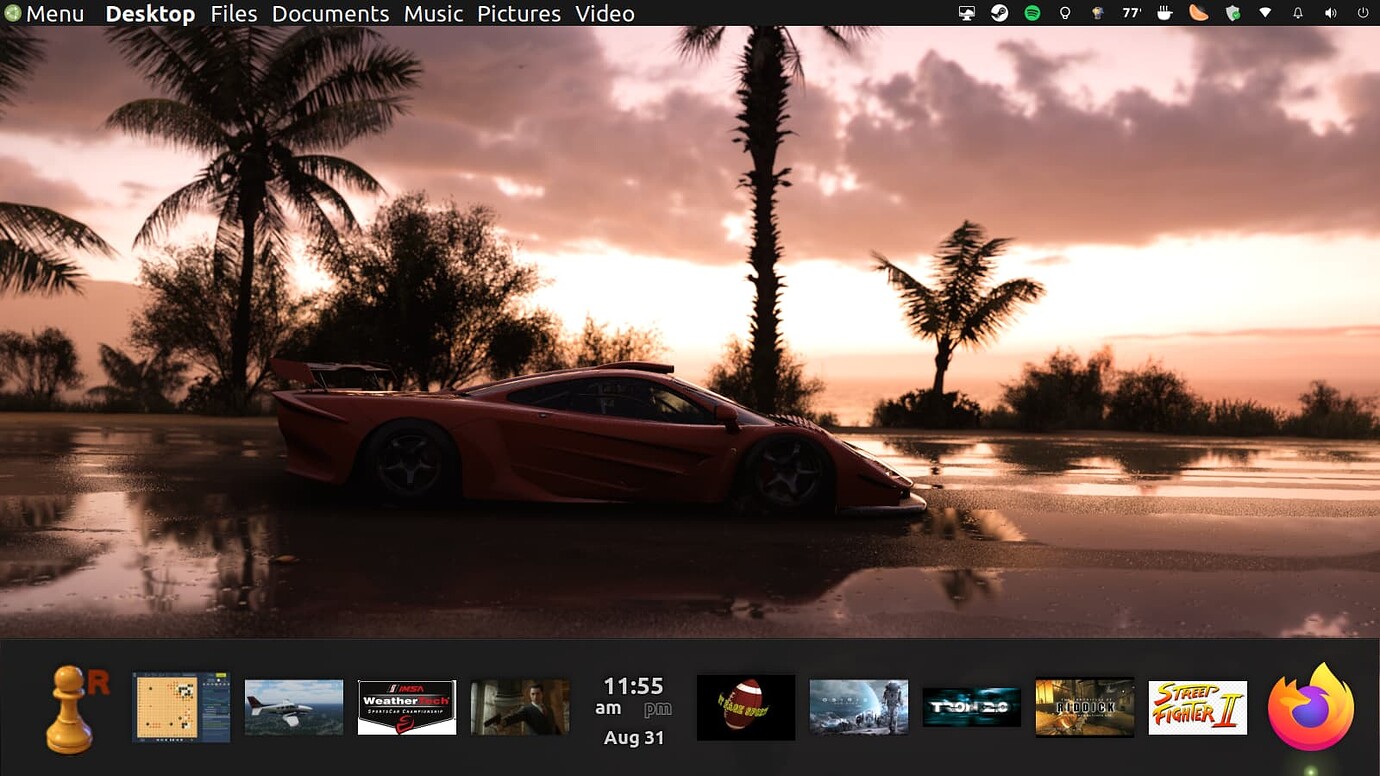
Hi. I love to see icons on docks of my favorite programs, all visible at once, and can be launched without going through menus. I don't have good vision, so I need a big clock/date format. This screenshot of Cairo Dock--CD can be made to look pretty much however one wants. I agree that the fact that UM can be so versatile is a huge credit.
The only program I can’t get to run on Wine is Garmin Express (updater for their GPS systems). I have not found a GPS that is Linux user friendly yet. I was also using Quicken still on Windows, it worked on Linux but to many operations did not, and I moved to Moneydance (paid software) which had a self contained .deb file I can run on as many computers as I own, and you get one free upgrade, but it is like a tarball and runs independent of the system so upgrades don’t affect it. I used Quicken on Windows from 2002 until earlier this year when my old Windows machine updated and then it said this software will no longer run on this computer. Quicken also no longer sells software you have to keep buying subscriptions, and I will not do that.
I am now looking for a Linux compatible GPS but I haven’t found one yet. Then I can be Windows free.
For that single purpose I’ve kept around and old, minimal Asus netbook which will connect easily with my 27” display whenever I may wish to use that app.
Sorry that I cannot help with your GPS quandary Jymm - if ever I go anyplace unfamiliar I can easily use GPS via my Android phone or tablet.
Hi. I don't know if this helps, but there is KDE Connect to pair an Android to UM (the phone mentioned in your link). KDE Connect is in Google Play. I had to add some new ufw rules for my phone to be found, but once I did that the phone was found instantly. Using the app saved me from systemctl.
My strong preference for the MPE app regards its abilities for which I’ve found no equal - I have tested KDE Connect & have helped others to use it for copying pics, etc.
I have tried using the code you provided so generously - but Conky Manager doesn’t recognize it no matter what I’ve tried.
A very small, minimal Gotham is already in use at the bottom left of my screen - but I’ve no clue how to add what you gave me - which I want to show at the top-right.
~/.conky/gotham is the directory. Copy the Gotham file and rename it, then copy the code I provided into the original Gotham file, replacing any of the original code and save. It should run from there.