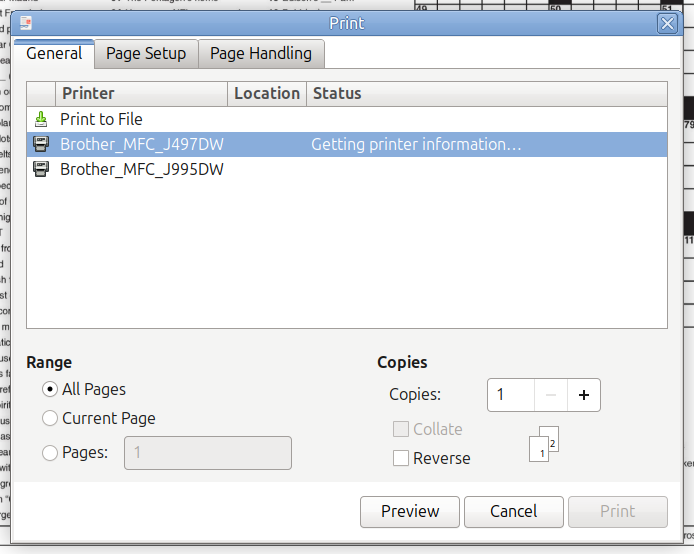
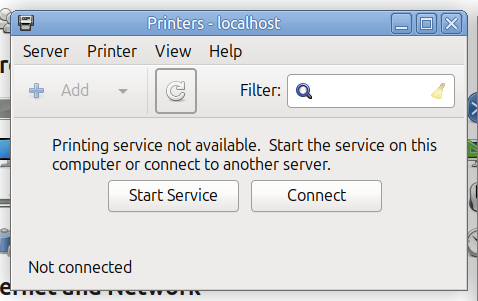
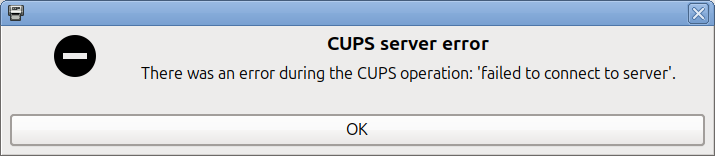
I was away for the TDay holiday and returned home yesterday. Turned on my desktop computer. All seemed normal, until this morning when I tried to print the Sunday crossword puzzle. It didn't work. My printer shows up in the Print dialog, but the location column should say "Dave's Study", but it's blank. When I clicked on my printer to select it, the status changed to "Getting printer information..." and the mouse pointer changes to a spinner, but nothing happens:
In a terminal I tried to get the status of the cups service, and this was the result:
dave@dave-NUC6CAYH:~$ sudo systemctl status cups.service
[sudo] password for dave:
○ cups.service - CUPS Scheduler
     Loaded: loaded (/usr/lib/systemd/system/cups.service; enabled; preset: enabled)
     Active: inactive (dead) (Result: exit-code) since Sun 2025-11-30 10:27:19 MST; 8min ago
TriggeredBy: × cups.socket
             × cups.path
       Docs: man:cupsd(8)
    Process: 2928 ExecStart=/usr/sbin/cupsd -l (code=exited, status=1/FAILURE)
   Main PID: 2928 (code=exited, status=1/FAILURE)
        CPU: 22ms

Nov 30 10:27:19 dave-NUC6CAYH systemd[1]: cups.service: Failed with result 'exit-code'.
Nov 30 10:27:19 dave-NUC6CAYH systemd[1]: Failed to start cups.service - CUPS Scheduler.
Nov 30 10:27:19 dave-NUC6CAYH systemd[1]: cups.service: Scheduled restart job, restart counter is at 5.
Nov 30 10:27:19 dave-NUC6CAYH systemd[1]: Stopped cups.service - CUPS Scheduler.
Nov 30 10:27:19 dave-NUC6CAYH systemd[1]: Dependency failed for cups.service - CUPS Scheduler.
Nov 30 10:27:19 dave-NUC6CAYH systemd[1]: cups.service: Job cups.service/start failed with result 'dependency'.
Yesterday afternoon, I ran Software Updater, and it installed something regarding CUPS, but I don't remember the specifics. That could be erelated to the "dependency" result in the output of the systemctl command.
I tried shutting down the computer and restarting, but got the same results.
Any thoughts on what I can do to get printing again?
I've applied a recommended hack and I can now print. But as pointed out in the following website, editing the cupsd.conf file may cause problems in the future when an official fix rolls out:
To be safe, I kept a copy of the original file on my desktop, so I can restore it before proceeding with any update that is issued (possibly tomorrow, Monday). The changes I made to the /etc/cups/cupsd.conf file are shown below. Basically, I commented out the four offending lines at the end of the file:
(Beginning of file redacted for brevity...)
  <Limit Cancel-Job CUPS-Authenticate-Job>
    AuthType Negotiate
    Require user @OWNER @SYSTEM
    Order deny,allow
  </Limit>
  <Limit All>
    Order deny,allow
  </Limit>
</Policy>
# Commented out 2025-11-30: JobPrivateAccess default
# Commented out 2025-11-30: JobPrivateValues default
# Commented out 2025-11-30: SubscriptionPrivateAccess default
# Commented out 2025-11-30: SubscriptionPrivateValues default
End of file.
According to John Nagle in the post quoted above, "The current manual page for cupsd.conf seems to require that the JobPrivateAccessdirective appear only within Policy sections. The conf file I have, created automatically by Ubuntu some versions back, has it outside the sections. What I suspect happened is that the CUPS cupsd.conf format changed at some point, or enforcement became more strict."
I think it likely that the vulnerability cited by @Norm24 was fixed with a code change that more strictly enforces the required syntax of the cupsd.conf file.
For general reference, I examined the /etc/cups/cupsd.conf file on my machine (where I don't experience the issue encountered).
I noted that those exact 4 lines, which Dave commented out from the bottom of the file, are in fact repeated in 3 locations elsewhere in that file, under each of
Policy default,
Policy authenticated, and
Policy kerberos
Obviously, someone was distracted when they were reviewing code for a stated requirement.
This saga didn't quite end for me,after I was able to print I was no longer able to scan due the missing hp-plugin. Tried installing from every possible angle I could think of without success.In the end I completely purged my system of CUPS and anything HP related including all directories/files and started from scratch.
After editing the /etc/cups/cupsd.conf file I had only checked for printing. But just now I tried a scan, and that worked too without any further hacks.
As of Wednesday evening (12/3), I still haven't seen a CUPS update come through the Software Updater.
In my case not being able to scan was a HP specific issue.After doing some research I found it to be a known issue.
I also have not seen any updates to CUPS and yet after completely purging my system of CUPS and HPLIP and reinstalling CUPS and the version of HPLIP from the repos I now have full print/scan capabilities. I've never been able to use my printer without having HPLIP installed even though driverless printing is the norm in 24.04.
I use Linux Mint Mate. I experienced the same issue. My problem was resolved using the commands shared by @Norm24. Here’s my diff output. Since I am using Linux Mint Mate, I'm not sure if it's appropriate for me to write an answer on this topic, but I’m sharing my diff output in case it helps someone:
I had the same problem today. It wouldn't even show my printer. It just said cups server not running and my printer is a Brother printer.
I tried another laptop and that worked fine so I reinstalled with no difference. Then I went to uninstall everything and I saw cups had a lot of updates, so I updated and it then worked fine. I have never experienced a needed update doing anything like that before in all my years of using Linux which is about 17 years now. Just weird is all I can say.
I also have a very old Macbook Air 6,3(early 2013) running 24.04.3 that I had not broken out in about 3 months and it was a no go for printing and scanning.So I did a full upgrade which took about 30 minutes and I could print but not scan.Completely purged it of CUPS and HPLIP did a restart and reinstalled CUPS and the repo version of HPLIP and then another restart and life is good on that machine as well except hplip-gui aka HPLIP TOOLBOX is non functional on the Mac but all print/scan functions are normal.