Echo in microphone when I speak

Hi! I have some problem when I speak to microphone and when I speak with headphones they have echo and I don't know why and one of them has UNCLAIMED status and can't solve this problem.

My Ubuntu version is 24.04.3 LTS, videocard NVIDIA GeForce GTX 1650, processor AMD Ryzen™ 5 4600H with Radeon™ Graphics × 12, GNOME version 46.

I use command "sudo lshw -C sound" and here what I have:

*-multimedia
description: Audio device
product: NVIDIA Corporation
vendor: NVIDIA Corporation
physical id: 0.1
bus info: pci@0000:01:00.1
logical name: card0
logical name: /dev/snd/controlC0
logical name: /dev/snd/hwC0D0
logical name: /dev/snd/pcmC0D3p
logical name: /dev/snd/pcmC0D7p
logical name: /dev/snd/pcmC0D8p
logical name: /dev/snd/pcmC0D9p
version: a1
width: 32 bits
clock: 33MHz
capabilities: pm msi pciexpress bus_master cap_list
configuration: driver=snd_hda_intel latency=0
resources: irq:78 memory:c3000000-c3003fff
*-usb:1
description: Video
product: Integrated Camera
vendor: Azurewave
physical id: 3
bus info: usb@1:3
version: 19.19
capabilities: usb-2.01
configuration: driver=uvcvideo maxpower=500mA speed=480Mbit/s
*-multimedia:0 UNCLAIMED
description: Multimedia controller
product: ACP/ACP3X/ACP6x Audio Coprocessor
vendor: Advanced Micro Devices, Inc. [AMD]
physical id: 0.5
bus info: pci@0000:05:00.5
version: 01
width: 32 bits
clock: 33MHz
capabilities: pm pciexpress msi cap_list
configuration: latency=0
resources: memory:c3580000-c35bffff
*-multimedia:1
description: Audio device
product: Family 17h/19h HD Audio Controller
vendor: Advanced Micro Devices, Inc. [AMD]
physical id: 0.6
bus info: pci@0000:05:00.6
logical name: card1
logical name: /dev/snd/controlC1
logical name: /dev/snd/hwC1D0
logical name: /dev/snd/pcmC1D0c
logical name: /dev/snd/pcmC1D0p
version: 00
width: 32 bits
clock: 33MHz
capabilities: pm pciexpress msi bus_master cap_list
configuration: driver=snd_hda_intel latency=0
resources: irq:79 memory:c35c0000-c35c7fff

uname -a
Linux artem-IdeaPad-Gaming-3-15ARH05 6.14.0-37-generic #37~24.04.1-Ubuntu SMP PREEMPT_DYNAMIC Thu Nov 20 10:25:38 UTC 2 x86_64 x86_64 x86_64 GNU/Linux

sudo lspci
00:00.0 Host bridge: Advanced Micro Devices, Inc. [AMD] Renoir/Cezanne Root Complex
00:00.2 IOMMU: Advanced Micro Devices, Inc. [AMD] Renoir/Cezanne IOMMU
00:01.0 Host bridge: Advanced Micro Devices, Inc. [AMD] Renoir PCIe Dummy Host Bridge
00:01.1 PCI bridge: Advanced Micro Devices, Inc. [AMD] Renoir PCIe GPP Bridge
00:01.2 PCI bridge: Advanced Micro Devices, Inc. [AMD] Renoir/Cezanne PCIe GPP Bridge
00:02.0 Host bridge: Advanced Micro Devices, Inc. [AMD] Renoir PCIe Dummy Host Bridge
00:02.1 PCI bridge: Advanced Micro Devices, Inc. [AMD] Renoir/Cezanne PCIe GPP Bridge
00:02.2 PCI bridge: Advanced Micro Devices, Inc. [AMD] Renoir/Cezanne PCIe GPP Bridge
00:08.0 Host bridge: Advanced Micro Devices, Inc. [AMD] Renoir PCIe Dummy Host Bridge
00:08.1 PCI bridge: Advanced Micro Devices, Inc. [AMD] Renoir Internal PCIe GPP Bridge to Bus
00:08.2 PCI bridge: Advanced Micro Devices, Inc. [AMD] Renoir Internal PCIe GPP Bridge to Bus
00:14.0 SMBus: Advanced Micro Devices, Inc. [AMD] FCH SMBus Controller (rev 51)
00:14.3 ISA bridge: Advanced Micro Devices, Inc. [AMD] FCH LPC Bridge (rev 51)
00:18.0 Host bridge: Advanced Micro Devices, Inc. [AMD] Renoir Device 24: Function 0
00:18.1 Host bridge: Advanced Micro Devices, Inc. [AMD] Renoir Device 24: Function 1
00:18.2 Host bridge: Advanced Micro Devices, Inc. [AMD] Renoir Device 24: Function 2
00:18.3 Host bridge: Advanced Micro Devices, Inc. [AMD] Renoir Device 24: Function 3
00:18.4 Host bridge: Advanced Micro Devices, Inc. [AMD] Renoir Device 24: Function 4
00:18.5 Host bridge: Advanced Micro Devices, Inc. [AMD] Renoir Device 24: Function 5
00:18.6 Host bridge: Advanced Micro Devices, Inc. [AMD] Renoir Device 24: Function 6
00:18.7 Host bridge: Advanced Micro Devices, Inc. [AMD] Renoir Device 24: Function 7
01:00.0 VGA compatible controller: NVIDIA Corporation TU117M [GeForce GTX 1650 Mobile / Max-Q] (rev a1)
01:00.1 Audio device: NVIDIA Corporation Device 10fa (rev a1)
02:00.0 Non-Volatile memory controller: Samsung Electronics Co Ltd NVMe SSD Controller 980 (DRAM-less)
03:00.0 Ethernet controller: Realtek Semiconductor Co., Ltd. RTL8111/8168/8211/8411 PCI Express Gigabit Ethernet Controller (rev 10)
04:00.0 Network controller: Realtek Semiconductor Co., Ltd. RTL8822CE 802.11ac PCIe Wireless Network Adapter
05:00.0 VGA compatible controller: Advanced Micro Devices, Inc. [AMD/ATI] Renoir [Radeon RX Vega 6 (Ryzen 4000/5000 Mobile Series)] (rev c7)
05:00.2 Encryption controller: Advanced Micro Devices, Inc. [AMD] Family 17h (Models 10h-1fh) Platform Security Processor
05:00.3 USB controller: Advanced Micro Devices, Inc. [AMD] Renoir/Cezanne USB 3.1
05:00.4 USB controller: Advanced Micro Devices, Inc. [AMD] Renoir/Cezanne USB 3.1
05:00.5 Multimedia controller: Advanced Micro Devices, Inc. [AMD] ACP/ACP3X/ACP6x Audio Coprocessor (rev 01)
05:00.6 Audio device: Advanced Micro Devices, Inc. [AMD] Family 17h/19h HD Audio Controller
06:00.0 SATA controller: Advanced Micro Devices, Inc. [AMD] FCH SATA Controller [AHCI mode] (rev 81)
06:00.1 SATA controller: Advanced Micro Devices, Inc. [AMD] FCH SATA Controller [AHCI mode] (rev 81)

I tried to restart pulseaudio and alsa, but it doesn't help.

I'm new in Ubuntu so I'll be grateful for your help and I can also give additional info if you need.
2 Likes

Hi, @Klymen_Klymenko and welcome to the Ubuntu MATE Community!

1 Like

your web camera has a builtin microphone.

how are your headphones connected? via usb?

lsusb will tell us

1 Like

Given you are using 24.04, your primary audio server is PipeWire. For compatibility, PipeWire also provides a PulseAudio server.

In short, basically, restarting PulseAudio probably won't do much.

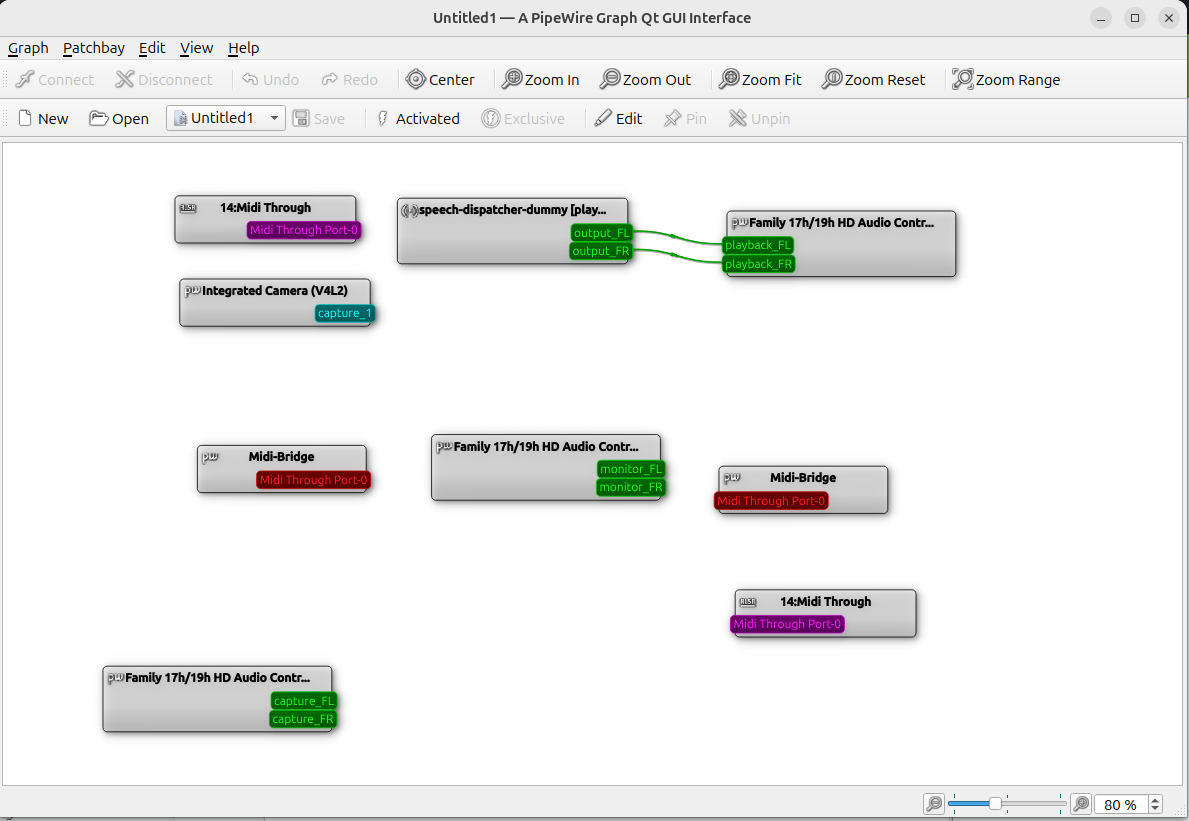
A tool that might help is qpwgraph which can be installed via sudo apt qpwgraph.

This will show the route that audio takes through your system. Take a screenshot of the graph when you are experiencing the issue and paste it here.

2 Likes

Another resource (seeing as your question is not MATE desktop specific) is: https://discourse.ubuntu.com/

2 Likes

Hello! Here what I have:
Bus 001 Device 001: ID 1d6b:0002 Linux Foundation 2.0 root hub
Bus 001 Device 002: ID 30fa:1040 INSTANT USB GAMING MOUSE
Bus 001 Device 003: ID 13d3:56ff IMC Networks Integrated Camera
Bus 002 Device 001: ID 1d6b:0003 Linux Foundation 3.0 root hub
Bus 003 Device 001: ID 1d6b:0002 Linux Foundation 2.0 root hub
Bus 003 Device 002: ID 0bda:c123 Realtek Semiconductor Corp. Bluetooth Radio
Bus 004 Device 001: ID 1d6b:0003 Linux Foundation 3.0 root hub

1 Like

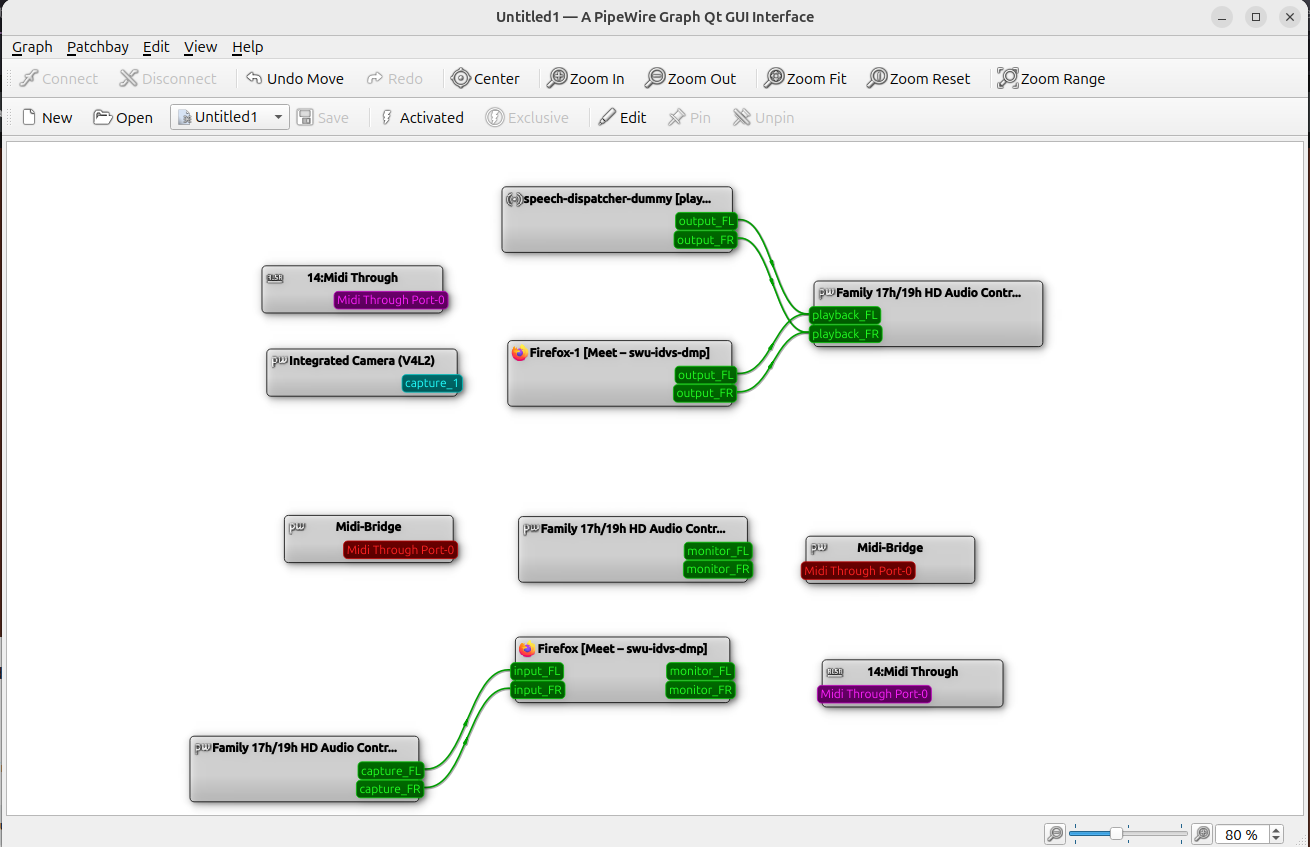
Hello! Here what I have

2 Likes

In my Settings → Sound, my “Output Device” is Speakers - Family 17h/19h HD Audio Controller and it works fine, but in “Input Device” where I have Internal Microphone - Family 17h/19h HD Audio Controller it has echo when I speak. In Google Meet I have also option to use microphone “Monitor of Family 17h/19h HD Audio Controller Analog Stereo” but my voice cannot be heard there at all

1 Like

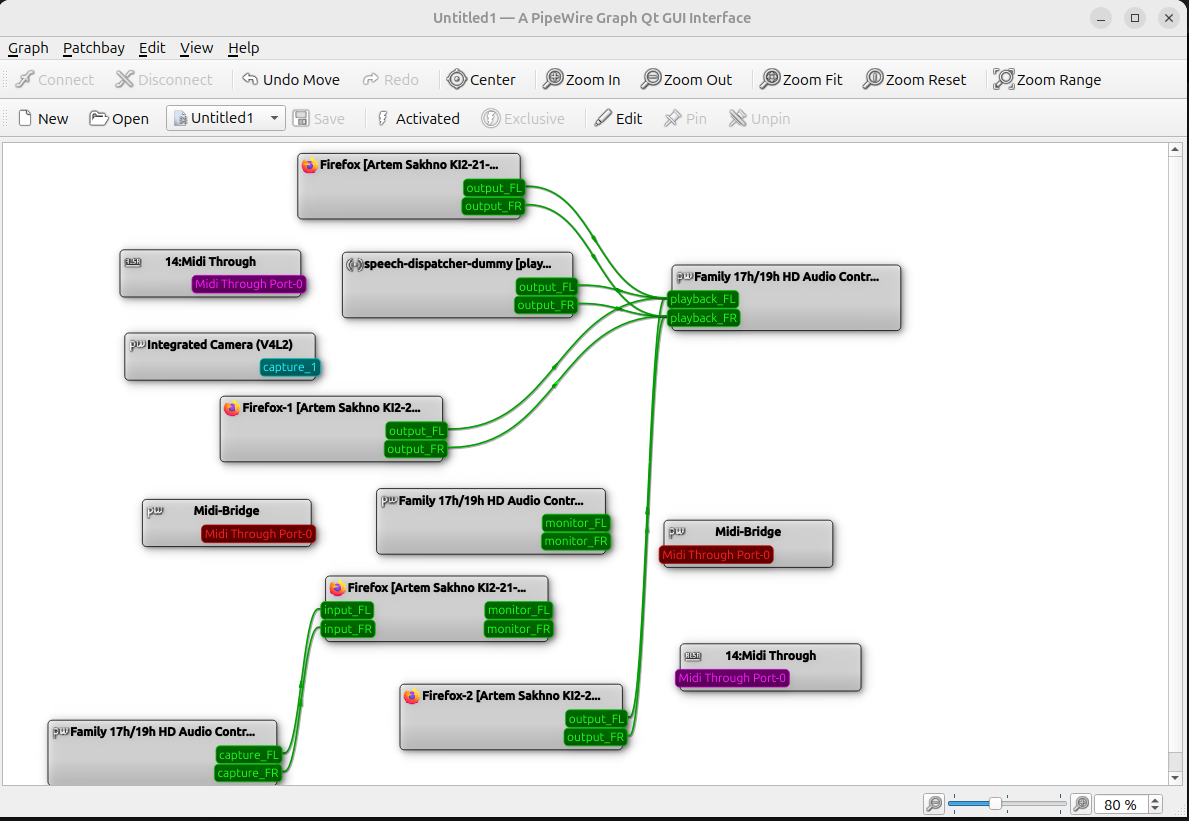
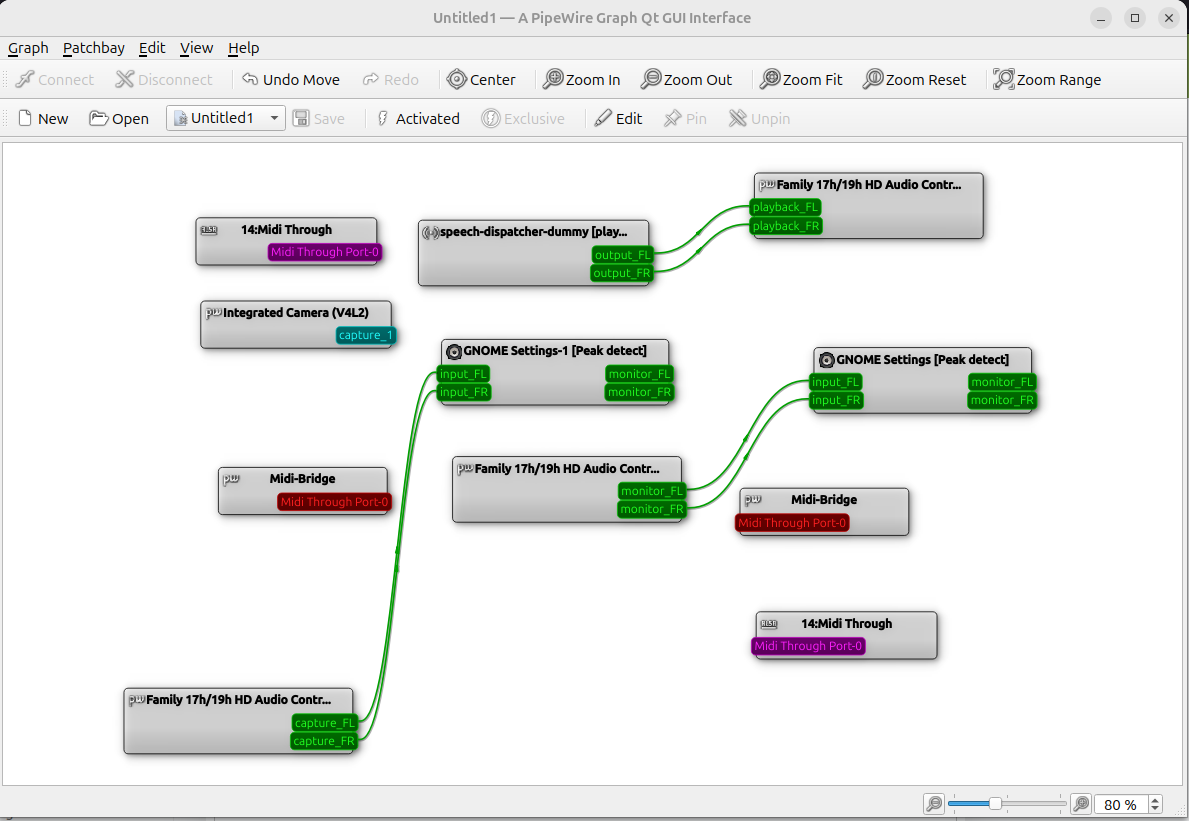
This screen shows the connections when I closed the settings
Screen above shows the connections when I open the settings

1 Like

Does seem strange to me that there's a path from your speaker (monitor) to the peak-detect (in GNOME settings) as well as a path from the microphone (capture) to peak detect.

Also strange that there's no path to your speaker (playback) - did you hear any sound at all while the graph was in this state?

What happens when you open other applications where you use the microphone?

1 Like

Here what I have in Zoom:

Same in Google Meet.

Both have an echo when I speak, but at the same time I can hear clearly what is being said to me. Also I can watch videos and I can clearly hear without echo.
Here what I have in my Settings → Sound:
I am more inclined to believe that it is a driver issue, because Multimedia Controller has status UNCLAIMED.

2 Likes

According to Lenovo, this laptop has builtin

Microphone
Dual array microphone
Camera
720p, with privacy shutter, fixed focus

If you disconnect your headphones, you can have a zoom meeting and you should hear people and people should hear you without echo. The builtin mic and speakers will be used.

Do your headphones have a mic?

How do you connect the headphones (via the 3.5mm jack)?

I have headphones with a mic and am able to run zoom meetings daily w/o issues.

Describing the issue in precise detail is important for troubleshooting.

2 Likes

The UNCLAIMED probably means that there's a device that doesnt work (maybe a jack or something?)

Otherwise, it looks like there are three tabs playing audio in Firefox. Perhaps one of them is playing back your microphone sound?

1 Like

Also btw on my laptop I see exactly the same UNCLAIMED controller and I am not experiencing an echo.

2 Likes

Here what I have in Google Meet:

A little bit different from Zoom

1 Like

Ah!

I wonder if its the dual array microphone not being configured correctly OR isnt fully supported on Linux?

Most microphones are MONO and will show up as a single capture port - whereas on your graph there are two capture ports.

My guess is that there is supposed to be something in the ALSA layer (i.e. the kernel) that isnt handling this microphone properly. It could be something to do with the ACP, but it could be something else.

I havent come across this before so I can't help much :-/ but I suspect the dual array microphone is the key piece of information that I missed earlier.

1 Like

A possible workaround would be to mix the signals together (using PipeWire) into a MONO channel.

One approach is via PipeWire's Filter Chain module, using the builtin mixer filter.

Something like this would work as the contents of ~/.config/pipewire/pipewire.conf.d/mix-dual_array_mic.conf:

# ~/.config/pipewire/pipewire.conf.d/mix-dual_array_mic.conf
context.modules = [{
    name = libpipewire-module-filter-chain,
    args = {
        node.description = "Mixed Dual Array Microphone"
        media.name       = "Mixed Dual Array Microphone"
        filter.graph = {
            nodes = [
                {
                    type  = builtin
                    name  = mixer
                    label = mixer
                    control = { "Gain 1" = 0.5 "Gain 2" = 0.5 }
                }
            ]
            inputs  = [ "mixer:In 1" "mixer:In 2" ]
            outputs = [ "mixer:Out" ]
        }
        capture.props = {
            node.name      = "mixer_input.dual_array_mic"
            node.passive   = true
            target.object  = <insert target object here>
            audio.channels = 2
            audio.position = [ FL FR ]
        }
        playback.props = {
            node.name      = "mixer_output.dual_array_mic"
            media.class    = Audio/Source
            audio.channels = 1
            audio.position = [ MONO ]
        }
    }
}]

Now the only thing you need to make the above work is a value for target.object.

To get this, we'd first look at wpctl status which will show us the sources we have in PipeWire, e.g. I have (skipping some output):

Audio
 │
 ├─ Sources:
 │    * 58. Razer Barracuda X Mono              [vol: 1.42]
 │      84. Pre-mix Razer Barracuda X Voice Filter [vol: 1.00]
 │      87. Razer Barracuda X Voice Filter      [vol: 1.00]

And then you can get the node.name for the node number 58 with wpctl inspect 58 | grep node.name:

* node.name = "alsa_input.usb-1532_Razer_Barracuda_X_R002000000-01.mono-fallback"

That would be the value you'd need for target.object in the configuration file.

You would then need to restart WirePlumber and PipeWire via

systemctl restart --user wireplumber.service pipewire.{service,socket}

You would then see a new 'Input' in your Sound Settings, which will have the name "Mixed Dual Array Microphone".

Is this unnecessarily complex? Maybe. Is it the most complex solution? No. Do I know if it works? Also no. But I think it's worth a shot!

If there is still an "echo" then it probably means there is some kind of delay between the two channels. You could try using just one channel by modifying the gain, e.g:

                    control = { "Gain 1" = 0.0 "Gain 2" = 1.0 }

Another option (if there is delay between the channels) would be to put a Delay filter in front of the mixer. That gets a little more complicated again, so I won't go into that if one of these two options works out OK for you.

Of course, this is all somewhat pointless if there is a simpler option that solves things at the ALSA level (i.e. some firmware or other kernel module that handles the dual array microphone better and mixes it into a MONO source).

2 Likes

Last thing (for now).

The problem you have with the Audio Co-processor (ACP) is possibly the same as what is reported here: Bug 216270 - Builtin microphone doesn't work on ASUS Zenbook S 13 OLED 2022 (UM5302TA) , except for a different machine (you would need information from sudo dmidecide -t baseboard).

To even try this as a fix would require you to patch and then build a kernel. The guide for building a plain ol' Ubuntu kernel is here and sets the scene for how tough this would be.

1 Like

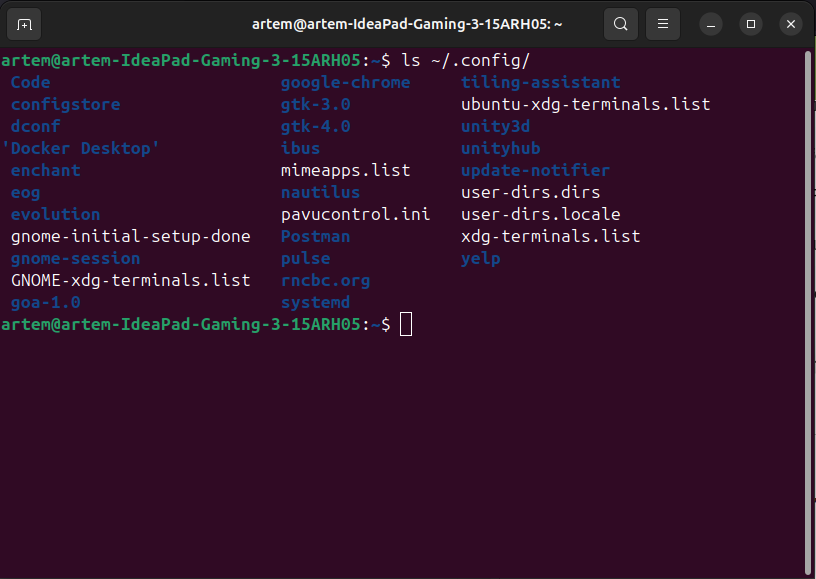
Hmmmm, I didn’t have pupewire directory:

Should I create a directory and file as you writed? ( I means these: ~/.config/pipewire/pipewire.conf.d/mix-dual_array_mic.conf)

1 Like

Yes, that will be a folder for user-specific configuration files. For more details about the configuration files (and the locations) on 24.04: Ubuntu Manpage: pipewire.conf - pipewire.conf

By creating a .config/pipewire/pipewire.conf.d/ folder, pipewire will merge the contents with the system wide configuration; but only for your desktop sessions.

If you decide you want these changes to apply for all users, you can copy the contents to the system configuration folder instead: /usr/share/pipewire/pipewire.conf.d/

2 Likes