Can I ask you to try something simple first?
If you
- click to open Brisk,
- then hover over Graphics to display the list of applications associated,
- then click-and-hold on the Inkscape selection to drag-and-drop the Inkscape Launcher onto the Panel,
do you see the Inkscape Icon on your Panel?
If so ...
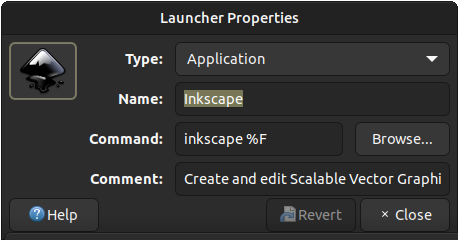
Right click on that Launcher, to display the following:
In the upper-left corner of that pop-up, you should see a button displaying the Icon for the App, in this case for Inkscape.
If the correct Icon is already displayed, i.e. Inkscape Logo then everything should already be configured ... and there is nothing more to do.
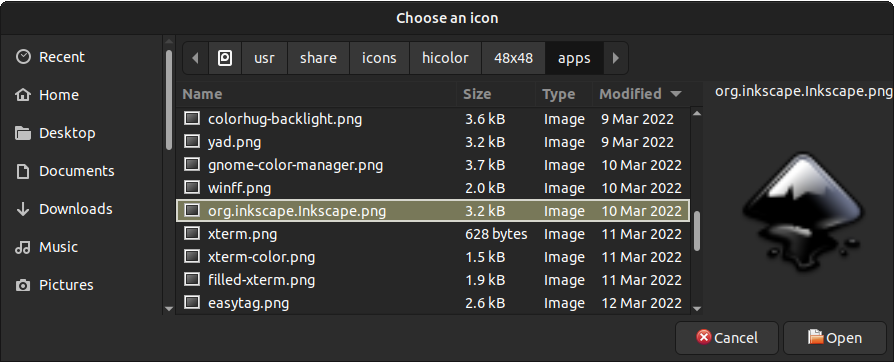
However, that square button box appears empty, or has the incorrect Icon, then if you click on that, it will display a file selection dialogue.
Navigate to the location where you can select the file identified below, and select that to display the correct Icon:
That icon could be an SVG type file. The one shown here is not the "flat" version which is also available, as per the "button" referenced above for the Launcher Properties.
If you click once only, that will select the indicated file and will display the chosen Icon to the right of the selecton box. When you confirm that the indicated selection is the correct choice, click Open, and the Icon will be applied for the application, which is for Inkscape, in this case.
If that does not correct the missing Icon on the "Application button" in the "Window List" on the lower Panel, I don't know what you need to try next.
If neither Inkscape, nor Zotero, have the necessary Icon installed, you can download that from the Branding page associated with each: