Resuming after suspend the screen is locked (ok) but I can't input the password

Hi!

When I suspend my laptotp the screen is locked, that’s ok.

When I want to resume my laptop I have to press the space bar. If I accidentally press any other key or I move the mouse or I press the mouse buttons the system resume, but the password window is unuseful, I can’t type in the password field, I can’t use any other button in the window.

I have to wait that the timer ends and press the “change user” button.

Is there a solution for this?

the solution is to logout first, then the Change User window makes sense.

1 Like

Well, in my opinion that is not the solution. The system can be suspended with the account opened, so the system must resume with the account opened. Otherwise the developpers should have prepared the system to logout the user automatically before suspend.

Usually the first character you type is the first character that is filled in in the password-field (unlike windows).

So if you just type your password instead of typing a space first, everything should work.

Could this explain what you are experiencing ?

1 Like

Hi Tkn, thanks for your response.

Unfrtunately is not like that, the password field in unactivated after resuming, if I try to type in it everything get blocked.

As I said before, the space bar is the only key that can activate it.

When I suspend my pc (top right, suspend), the pc goes blank, the power led blinks slowly. I can press ANY key not just spacebar and it will resume on the same user that was logged on.

If I lock the screen, I get a window in the center to unlock or Switch User. If I click on Switch User, the pc will log me out and then will pop the greeter display (left side) to select which user I want to log on and pw. So far, you have not said if you're running um24.04

1 Like

You’re right, sorry for that, I’m running Ubuntu Mate 24.04.3.

May be my english is not so good, I understand what is your situation, but mine is different. I’m exactly asking for help to change the behavior of my Mate desktop and obtain a clear situation like yours.

1 Like

Let's start with basic stuff, do you have the same versions?

user@um24:~$ dpkg -l | grep locker
ii  mate-screensaver                         1.26.2-1build2                           amd64        MATE screen saver and locker
ii  mate-screensaver-common                  1.26.2-1build2                           all          MATE screen saver and locker (common files)
user@um24:~$

Control Panel | Power Management | General
when the suspend button is pressed -> Suspend

Control Panel | Screensaver Preferences
both options not checked.

1 Like

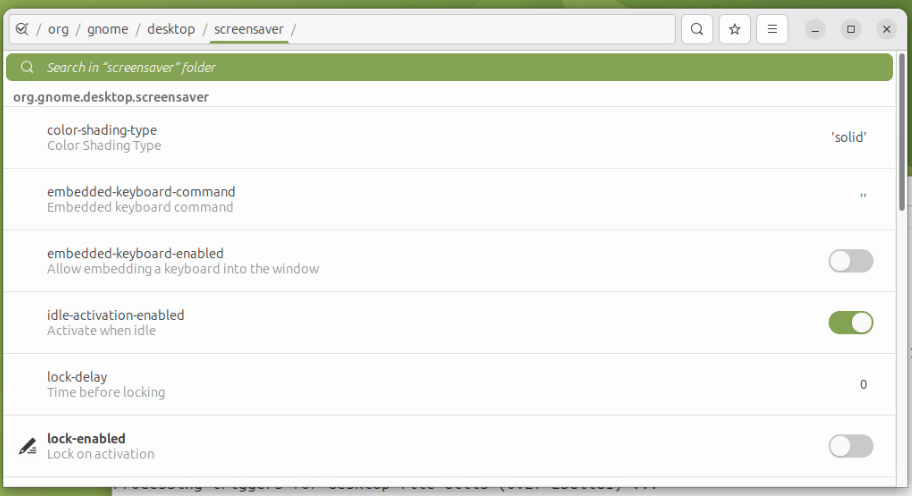
install dconf-editor (sudo apt install dconf-editor)

start dconf-editor, navigate to org.gnome.desktop.screensaver

uncheck lock-enabled

try your sequence again ... suspend, resume, unlock

1 Like

Is this what you are describing? If it is, there are some work-arounds.

Ubuntu Mate Bug Report

1 Like

Hi Pavlos, all the stuff you posted is exactly the same here.

1 Like

Hi GeekBone,

yes that bug describes my problem.

What about the workarounds?

1 Like

You can replace the mate-screensave with light-locker.

sudo apt install light-locker

And then disable mate-screensaver.

mkdir -p ~/.config/autostart cp /etc/xdg/autostart/mate-screensaver.desktop ~/.config/autostart/ sed -i 's/^Exec=.*/Exec=/' ~/.config/autostart/mate-screensaver.desktop

You can also look at other lockers like i3lock or xsecurelock.

You can look at this thread for some reference. It may cause a delay coming out of suspend.

2 Likes

I don't know if this will help, but I thought I'd post it, just in case.

I learned much about mate-screensaver in writing my touchscreen utilities. I had a problem with one of my scripts that interfered with the screensaver's ability to lock the screen. My script wasn't actually preventing the lock, but delaying it.

Through some investigating, I learned that choosing Suspend from the list that drops down when you click the computer icon in the top panel really just does the same as executing the command systemctl suspend from the command line. And that command does not lock the screen.

Whereas, if you instead select Shutdown from the drop-down list, and then click the Suspend button in the "Shut down this system now?" dialog box, it has the same effect as executing mate-screensaver-command --lock followed by systemctl suspend. By locking the screen first, before suspending, the screen is already locked when the computer wakes up. The same behavior happens when I close the laptop lid.

As far as I can tell, there is no option in either the Screensaver Preferences dialog or the Power Management dialog to specify that the screen should be locked whenever the computer suspends. That seems to be an oversight.

After some more investigation, I found that one way to track down the cause of screen locking issues is to take advantage of the mate-screensaver --debug option. Open a terminal window and type the command:

mate-screensaver-command --exit

This will force the screensaver to shutdown gracefully. Then execute the command:

mate-screensaver --debug

Then do whatever activity is causing your problem. For example, close the laptop lid, wait for the power light to slow-blink, then open the laptop lid. Then examine the debug messages that mate-screensaver printed in the terminal window.

If your method of getting around the lock screen problem involves starting a new session, then you may need to redirect the debug output to a file so that it's still around for you to examine:

mate-screensaver --debug > screensaver-log.txt

Here's the sticky widget: Any screensaver (not just MATE) cannot guarantee that the screen is locked if any other process can see input events. This makes sense, when you think about it. If the screensaver doesn't have exclusive access to input events, then a malicious person would, for example, be able to type a keyboard shortcut recognized by some running app and cause something illicit to happen.

The guiding principle is that only the screensaver process sees input events until the user types the correct password to unlock the screen.

So mate-screensaver achieves this, and I suspect all other screensavers do so too, by requesting the Xserver to grant it exclusive access to all inputs. In Xserver jargon this is called a "grab."

In my case, I examined the screensaver's debug output and found that the reason mate-screensaver was not locking immediately was that it was unable to grab some input sources. I pored through my script and realized that I had a subshell running a command that continuously monitored all inputs. Mea culpa. I rewrote the script so the command ran periodically rather than continuously, so mate-screensaver was able to grab those input sources in between invocations of that command.

Your problem with the keyboard being dead when the lock screen sounds suspiciously like an attempt to grab the keyboard inputs has been somehow bungled, perhaps by interaction with some process you have running at the time the screensaver tries to lock. I'm just guessing.

Anyway, if you're willing to try, please execute the commands above, grab the screensaver's debug output, and share it here. We'll try to help if we can.

"Sorry this letter is so long, but I didn't have time to make it shorter." --- Blaise Pascal
4 Likes

Hi Dave.

I tried to stop the scrrensaver and to start it in debug mode, but I can’t give you any log because… in that mode the issue doesn’t shows up.

Ok I said, I start again the screensaver and try some other workaround. Surprise: starting up the screensaver fron command line in normal mode there is no issue: the keyboard works fine after suspending.

Well, I tried to put a short script (screensaver stop, sleep 2, screensaver start) with the other stuff starting at login, but the issue comes back.

So, I guess that the problem is related with layer that starts the screensaver.

Creating a script to do this was another suggested work-a-round. I know it’s clumsy but you could set it up to run after every login.

1 Like

I don't think you need a script for this. The way autostart works (and I'm sure someone will correct me if I'm wrong or bungle this explanation somehow) is that there are two directories containing .desktop files for the programs that are to be started automatically at the beginning of a user's session.

  1. /etc/xdg/autostart contains the system-wide collection of .desktop files that will be started for all user's. On my laptop, this directory has 43 .desktop files, including (as you might suspect) one named mate-screensaver.desktop.

  2. ~/.config/autostart contains the collection of .desktop files that will be started for a specific user. Here's the kicker: A .desktop file in this directory overrides a .desktop file with the same name in the system-wide directory. This scheme allows each user to customize the startup process without bungling it for everyone else.

The really good news is that you don't have to muck around in these directories creating, editing, and deleting .desktop files. That is handled automatically by the Startup Applications Preferences dialog. When you add a program to the list in that dialog, the dialog automatically creates a .desktop file in your user autostart directory. If that file has the same name (same command) as one in the system-wide autostart directory, then the one in the system-wide directory will not be executed at startup.

If you uncheck that little box next to a program in the Startup Applications Preferences list, the dialog modifies the .desktop file in your user directory to include the line "Hidden=true". This prevents that program from being launched, and because the file still exists, it also prevents the system-wide "alter-ego" program from being launched.

When you click the "Remove" button in Startup Applications Preferences, the dialog removes the corresponding .desktop file from your user autostart directory. If a .desktop entry for the same command exists in the system-wide autostart directory, then that command will be now be launched at startup, but using the options and arguments specified in the system-wide .desktop file.

So, if you're game to give this a try, here's what I suggest:

  1. Open the Startup Applications Preferences dialog.

  2. Either remove the entry for your script, or uncheck the box next to it so it won't be executed.

  3. Click the Add button.

  4. In the Add Startup Program dialog, set Name to "MATE Screensaver Debug" (don't worry, this won't be the name of the .desktop file); set Command to "mate-screensaver --debug >/dev/null 2>&1" (for now this redirects debug messages to the null device; later we may wish to redirect them to a file if we need diagnostics); and Click the Add button. This entry should now override the system-wide launch of mate-screensaver.

  5. Cross your fingers, log out, log in, and test the suspend behavior.

This might not work. If it doesn't, that's actually good, because it gives us a data point. It's quite possible there is a startup race condition, because you indicated that when you launch the screensaver (with or without the --debug option) from a terminal after startup, resuming from suspend doesn't lock your keyboard. In that case, we may have to try fiddling with the Delay setting in the Add Startup Program dialog box to remove the time-dependent conflict.

Hope this helps.

2 Likes

Yes, Dave, you are correct in the theory, unfortunately mate-screensaver is not present in the Statup Application Preferences. Probably is started by systemd like a service.

I’ll try to find out how to check it and remove the autostart.

1 Like

Yes, that's correct. The Startup Application Preferences list doesn't show the system-wide .desktop file that launches mate-screensaver at startup. But you can override the system-wide launch of mate-screensaver by adding mate-screensaver to the Startup Application Preferences list. I suggest adding a value to the Delay field in the Add Startup Program dialog. Perhaps start at 5 seconds and see if that is enough to get mate-screensaver launched without the conflict that is causing your keyboard to be locked when you resume from suspend.

3 Likes

ok, but if I launch mate-screensaver from command line it says that is already running. I think that if I put it in Startup Preferences it has no effect for the same reason.

There is a a way to prevent the system-wide launch?