Hi guys
Since two Days I’m on Ubuntu Mate 16.04 with two new SSDs and I have to say: Wow! There’s had been done a lot in last two years!!! Ubuntu Mate is grew up!
But I’ve one simple question: I want to remove the menu-icon on my plank-dock, but I can’t find the ~/.config/plank/dock1/settings file. Can someone help me?
Thanks from an UM user from the first hour!
Take a look at this thread
I believe you need to insure that the item isn’t locked
1 Like
Hi @Atreju,
long time no see!. 
There are a few tips here too:
Basically follow the next few steps:
Configure Plank Dock:
Plank is so lightweight that it doesn’t have a graphical configuration interface. You can configure plank only by editing ~/.config/plank/dock1/settings
To add/remove apps from plank, right-click on icons tick on/off “Keep in Dock”.
For more, edit the configuration file by this command:
gksudo gedit ~/.config/plank/dock1/settings
HideMode = 1 means auto hide, set to 0 to disable it.Position = 3 means the dock location. 0 = left, 1= right, 2 = top, 3= bottom.
2 Likes
Hi folks
@wolfman Yes, I had to finish my study last months, but now, I’m now back! 
Thanks for your help - you are the bright light in dark ubuntu mate hours!
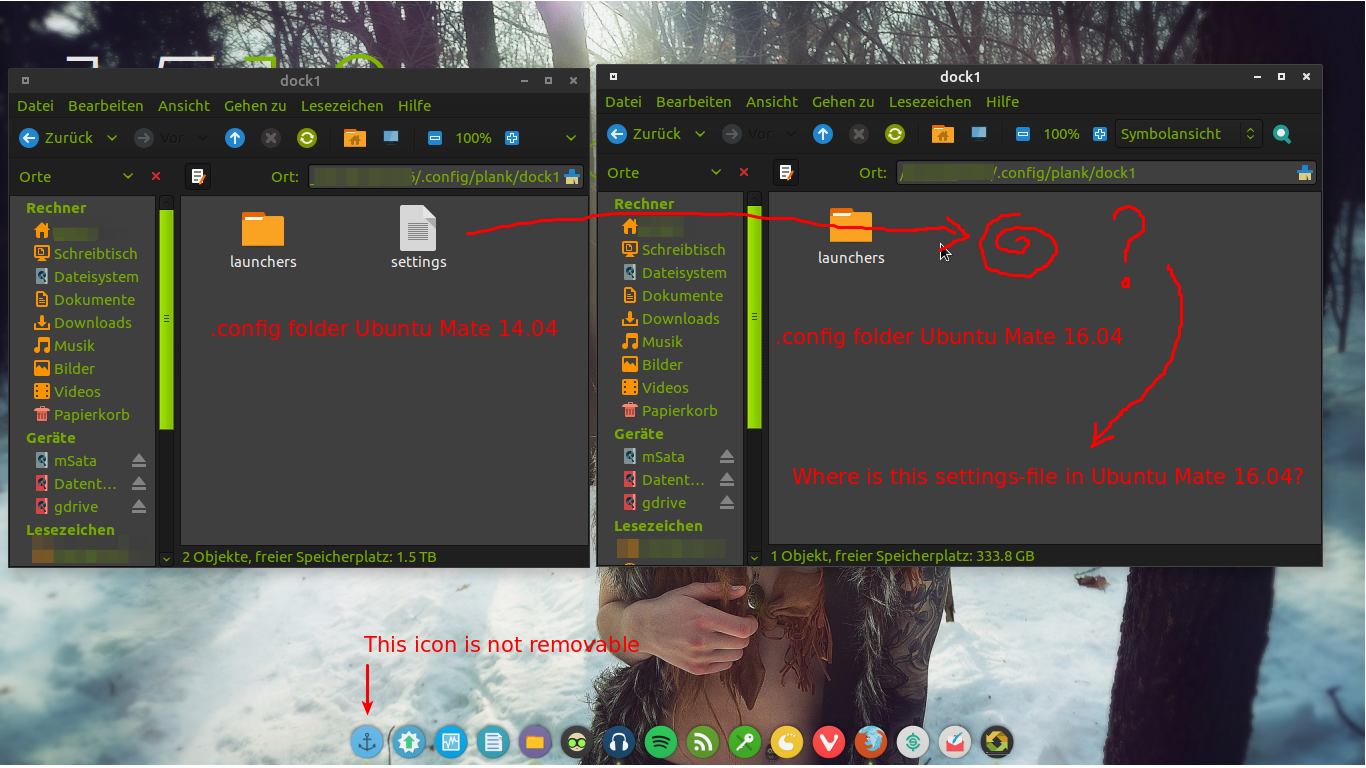
My big problem is: I used Plank since I had installed UM 14.04 via ppa and I configured it with the settings file, but with UM 16.04, I can’t find a settings file in the hidden home directory.
Hi @Atreju,
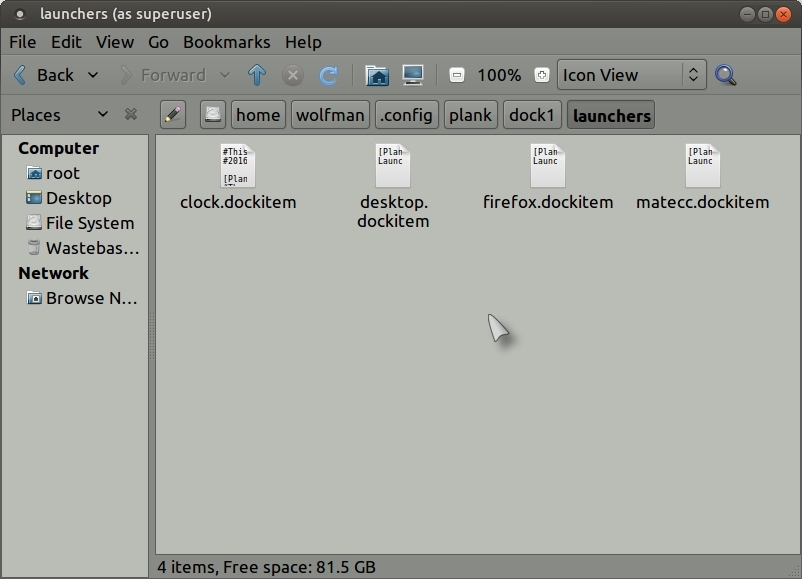
you can find it this way, open Caja with Alt + F2 then type:
gksudo caja
File System > Home > Now Press Ctrl + h to show hidden files > .config > Plank > dock1
Mine doesn't show any setting because I don't use it but you should be able to find it there!.
Hi @wolfman
Thanks much for your help! I followed your instructions - unfortunately with no result. Perhaps this different from UM 14.04 to 16.04 is, because Plank is now fix integrated in the system?
But for visualizing my problem, I made a screenshot with a backup of my home-folder UM 14.04 on left side and the new one of UM 16.04 on right side:
In this "settings" file, on UM 14.04 I could change the Plank-Settings an chose to show or not show the Plank-Menu-Icon...
Thanks for your advice!
Hi @Atreju,
that icon you want to remove is the settings icon, I don’t know if it is indeed possible to remove it although it states here:
"To add/remove apps from plank, right-click on icons tick on/off “Keep in Dock”?.
Info from here:
http://ubuntuguide.net/plank-most-lightweight-dock-ubuntu
Yes, that works - for all other icons, but not for the setting icon.
Well, I guess this is a very good example for a first world trouble, whit those I can live. Not so important. 
I think it is because there is no user GUI as such for Plank and that is why, if you removed it, people might get completely stuck!.
Sounds plausible. I thought in that way as well. A year ago, I found this settings-file, because I removed the settings-icon inadvertently from the dock - and couldn’t replaced it.  Now, this mistake isn’t possible any more.
As an alternative (I don’t know how well it works on Ubuntu Mate?), try “Docky”
http://wiki.go-docky.com/index.php?title=Welcome_to_the_Docky_wiki
I guess it should work, I tried Docky, before I explored Plank. And I stayed by Plank, as well as because @Wimpy recommended it. I remember Docky as a bit overloaded… 
Only one way to find out!.
1 Like
Well done, I installed just docky. The settings-icon isn’t removable as well, but the icon is green colored, what I like more than the blue one! 
1 Like
Good for you, now you can mark this thread as solved!.
2 Likes
A post was split to a new topic: Remove the Plank Icon?
I have the same problem, do you find a real solution?
Hi throbes
you have to go there: Remove the Plank Icon?
Plank icon can be removed using dconf-editor. Navigate to net.launchpad.plank.docks.dock1. Among settings there is a show-dock-item option, uncheck it to remove icon.
4 Likes
Thank you, this solve my problem totally.

2 Likes
As far as I can tell Plank has GUI: to acces it, run in terminal “plank --preferences” OR: press CTRL key and at the same time right-click the dock to get access to Preferences.
2 Likes