I've just updated the script in the above posting. You can adapt that to allow for the multiple "panels" which you can pre-program (hard-code).
Enjoy!

I've just updated the script in the above posting. You can adapt that to allow for the multiple "panels" which you can pre-program (hard-code).
Enjoy!
Yippee !!
I got it working with minimal effort using your great info - Sincerest Thanks !!!
Just so others in the Community know what worked for you ...
Did you have to adapt your own script to conform to the syntax used by the config file provided by @GeekBone ...
OR
did you need to adapt his config file to the format your own did?
OR
were you able to run each as-is, without modification, using the conky -c ... syntax at execution?
I used exactly what he provided as a separate script by modifying the startup as you suggested.
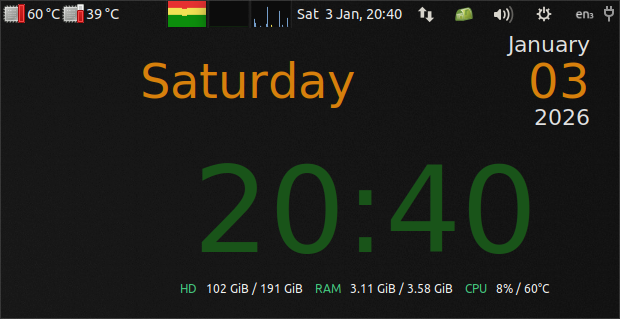
For those who are interested. I include below the conky config for a clock that looks like this:
As you can see, I prefer a darker look. The light from the large time characters at a near-white shade was too much for me.
Also, note I prefer to keep logical elements on separate lines in the "TEXT" element, rather than one continuous line, in order to have better control for layout "tweaking".
conky.config = {
	use_xft = true,
	font = '123:size=8',
	xftalpha = 0.1,
	update_interval = 1,
	total_run_times = 0,

	own_window = true,
	own_window_type = 'normal',
	own_window_transparent = true,
	own_window_hints = 'undecorated,below,sticky,skip_taskbar,skip_pager',
	own_window_colour = '000000',
	own_window_argb_visual = false,
	own_window_argb_value = 0,

	minimum_height = 400,
	minimum_width = 450,
	maximum_width = 700,
	gap_x = 30,
	gap_y = 30,
	alignment = 'top_right',

	double_buffer = true,
	draw_shades = false,
	draw_outline = false,
	draw_borders = false,
	draw_graph_borders = false,
	default_shade_color = 'red',
	default_outline_color = 'orange',
	default_color = 'white',
	color0 = 'EAEAEA',
	color1 = 'DF7F00',
	color2 = '0F4F0F',
	color3 = '3FCF7F',

	no_buffers = true,
	uppercase = false,
	cpu_avg_samples = 2,
	net_avg_samples = 1,
	override_utf8_locale = true,
	use_spacer = 'yes',
	border_inner_margin = 1,

};

conky.text = [[
${voffset 0}${alignr}${color0}${font GE Inspira:pixelsize=22}${time %B}
${voffset 46}${alignr}${color0}${font GE Inspira:pixelsize=22}${time %Y}
${voffset -78}${color1}${font GE Inspira:pixelsize=48}${time %A}
${voffset -57}${alignr}${color1}${font GE Inspira:pixelsize=48}${time %d}
${voffset 30}${alignc}${color2}${font GE Inspira:pixelsize=120}${time %H:%M}
${voffset -100}${offset 40}${font Ubuntu:pixelsize=12}${color3}HD   ${color}${fs_free /} / ${fs_size /}    ${color3}RAM   ${color}$mem / $memmax    ${color3}CPU   ${color}${cpu cpu0}%${color} / ${color}${hwmon 0 temp 1}°C

]];
... and if you are ever interested in displaying moon phases (or weather) using conky, you might want to look at what is discussed in this forum.
... and for those who were wondering, it seems that conky Developers have been working hard to make it work on native Wayland, without the X layer! Maybe someone else can tell us how workable/functional/reliable that is!